Lifecycle marketing
 Customer data management
 Email campaign production
 Search marketing
 CMS development
 Who we are
 How we work
 Case studies
 Testimonials
 Work samples
 Salesforce Marketing Cloud
 Braze
Braze Hubspot
 Marketo
 Pardot
 DataBricks
 Snowflake
 HighTouch
 RudderStack
 Segment by Twilio
If you’ve worked with Salesforce Marketing Cloud Engagement before, you’ve probably used AMPscript functions like LookupRows or LookupOrderedRows to fetch multiple records and display them dynamically. In Marketing Cloud Next, this is much easier. Instead of writing code, you can use a Repeater component to achieve the same result, directly from the UI.
But what’s a repeater in Marketing Cloud Next? Let’s find out.
What are repeaters in Marketing Cloud Next?
A repeater is a dynamic container that displays a list of related items for each recipient. It shows a series of items such as:
- New or best-selling products
- Recently viewed products
- Recent order updates
- Upcoming reservations or events
- Promotions or loyalty rewards
A repeater connects to a data source, such as an event object or a default Data Graph attribute, and renders multiple items using a single structured layout.
You design one card. The platform repeats it automatically for each qualifying record.
Suppose you want to target returning customers who have recently engaged with your website. You decide to personalize it with the products they most recently browsed. The repeater component connects to a data source which contains multiple records for each user. Then the repeater picks those records, applies your design, and displays them in a structured format.
How to use the Salesforce repeater component in Marketing Cloud Next?
Step 1: Add the Repeater component
Start by creating a new email or editing an existing one in the Marketing Cloud Next email builder.
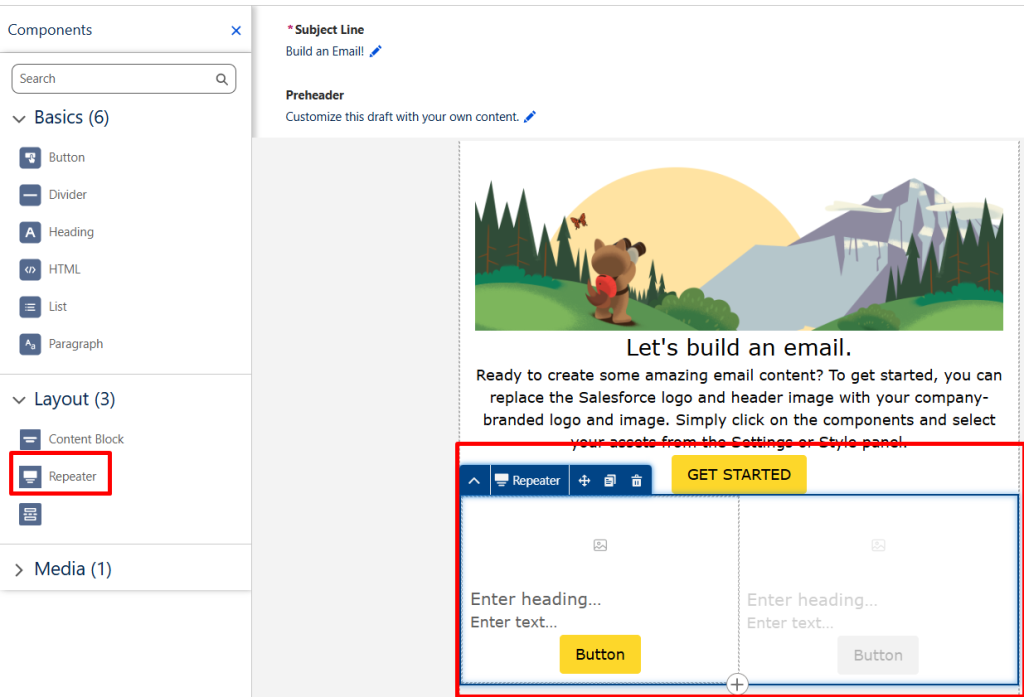
From the Components panel, drag the Repeater component onto the canvas.
Once added, it instantly creates a dynamic container designed to repeat content based on your selected data source.
Step 2: Configure the layout
By default, the Repeater displays a simple horizontal card layout.
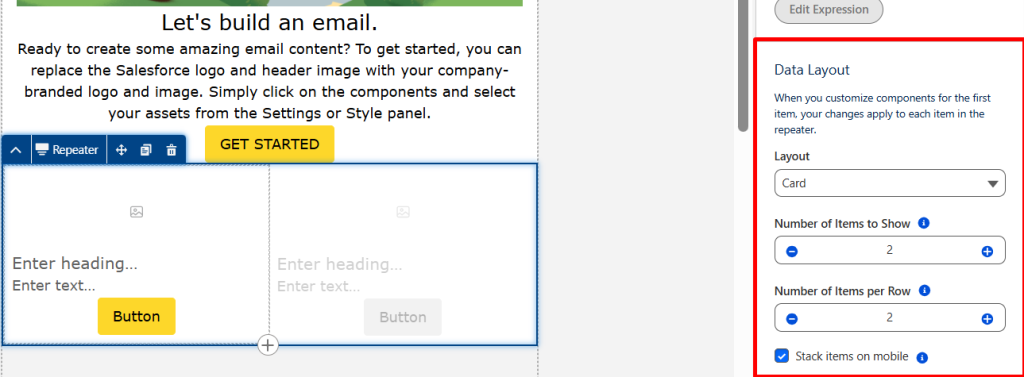
In the Settings panel, configure:
- Total items to display: 2
- Items per row: 2
This creates a structured layout of two product cards arranged in two rows.
The layout automatically supports images, headings, descriptions, and call-to-action buttons within each repeated record.
Step 3: Select the Repeater Data Source
In the right-hand sidebar:
- Navigate to Repeater Source → Select
- Choose from the default Data Graph.
- Choose your data source from the Data Graph
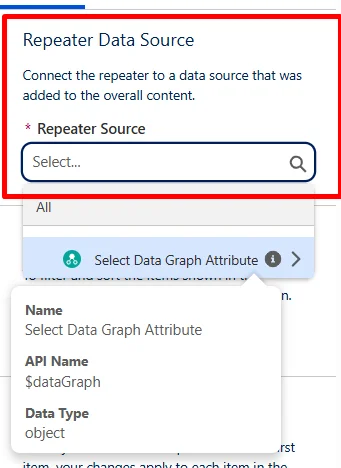
For this scenario, we have selected Returning Customers from the Default Data Graph.
This ensures the repeater retrieves browsing activity associated with each unified individual.
The data source you select determines which records will be repeated.
Step 4: Add dynamic merge fields
Next, within each card:
- Configure the image component to use a merge field for the product image
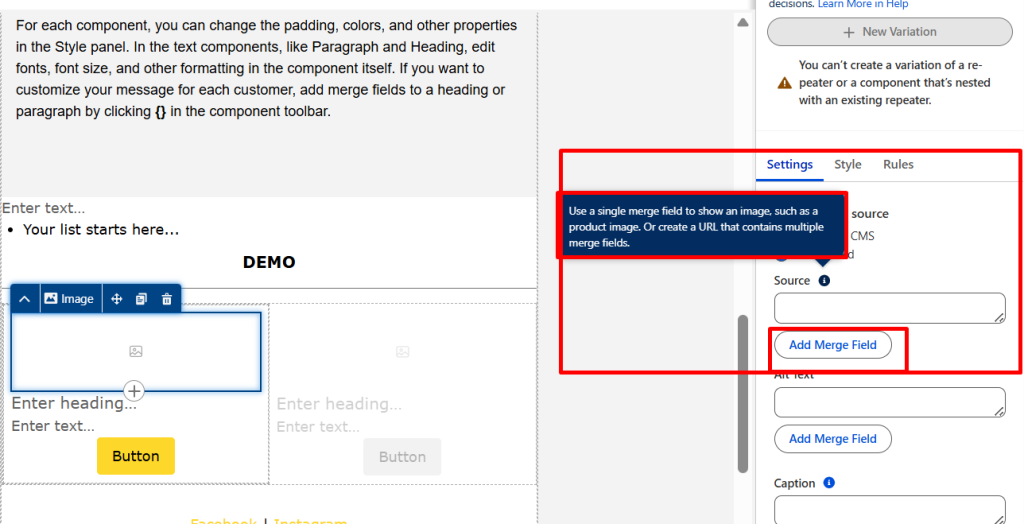
- Insert the product name as dynamic text
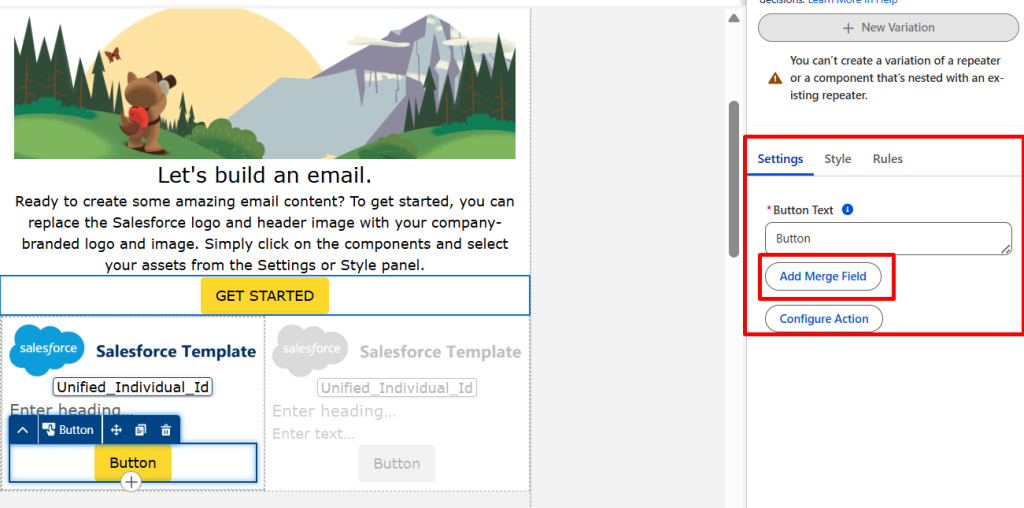
Remember, merge fields must be selected from the repeater source itself, not from unrelated data graph attributes. Once configured, the repeater automatically replicates this design for each qualifying record.
Step 5: Apply filtering and sorting
Since you want to display the most recent interactions, click Edit Expression and configure:
- Sort by: Engagement Date Time
- Order: Descending
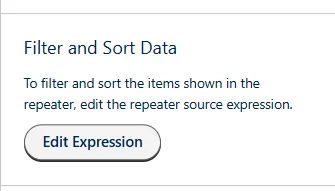
This guarantees that the two most recently browsed products appear first.
Filtering and sorting allow you to precisely control which records are rendered for each recipient. Once the configuration is complete, you can preview the email to verify whether the repeater content is displaying the correct results.
Considerations to keep in mind while using repeaters
When you’re working with repeaters in Marketing Cloud Next, keep the following in mind:
- Empty state: If a repeater source does not have data applicable to an email recipient, the repeater appears empty when that recipient opens the email.
- No hard item limit, but watch email size: There’s no enforced cap on items displayed, but too many items will significantly increase the email size and load time.
- Changing the data source breaks merge fields: If you change a repeater source after its attributes are already used in merge fields, you must delete those merge fields before saving. Then add the new source and recreate the merge fields.
- Data Graph record limits: The Data Graph can store a bounded number of records per DMO per individual, and those records are typically recent.
- Multiple repeaters in one email: You can include more than one repeater in a single email, each with a different data source. This may be useful for combining, for instance, recent purchases with upcoming events in the same message.

Rendering issues and fixes
Outlook rendering
In older versions of Microsoft Outlook, images inside repeaters may render at their original pixel dimensions or appear broken. To fix sizing issues:
- For a 2-column layout: Set image width explicitly to 284px
- For a 3-column layout: Set image width explicitly to 186px
Test thoroughly across email clients before sending, as these fixes may affect other components.
Merge fields not reflecting in image/URL fields
Occasionally, image URLs or dynamic links may not display properly from the merge field picker. Use the direct expression syntax as a workaround, as shown below:
{!$Expression.YourFieldAPIName}Button alignment
When text content within a repeater card varies significantly in length, button positions may shift vertically between cards. This is a current platform limitation with no built-in fix. Consider limiting text length via character caps in your data. Or keep CTA buttons outside the repeater.
The final result
When a customer opens the email, they see a personalized grid of the two most recent products they interacted with on your website. Each customer receives a uniquely generated email experience based on their own browsing behavior. There is no code involved. This is scalable, data-driven personalization delivered entirely through a visual interface.