Lifecycle marketing
 Customer data management
 Email campaign production
 Search marketing
 CMS development
 Who we are
 How we work
 Case studies
 Testimonials
 Salesforce Marketing Cloud
 Braze
Braze HubSpot
 Marketo
 Pardot
 DataBricks
 Snowflake
 HighTouch
 RudderStack
 Segment by Twilio
 Videos
Change is constant, they say.
But it often starts with a single, seemingly innocuous Slack message from the legal team: “We need to update the copyright year in the footer. Today.”
Or perhaps the CEO steps down, and their name is hardcoded into the signature of 400 different nurture emails across six regional workspaces.
Or maybe a rebrand dictates that the hex code for your primary CTA button has shifted slightly from #0055AA to #004499.
For Marketing Operations (MOPs) professionals, Marketo admins, and Center of Excellence (CoE) leads, these small variables create massive headaches.
A single change request can trigger a cascade of manual, low-value work: cloning programs, editing dozens of local assets, running Quality Assurance (QA) checks in multiple languages, and praying you didn’t miss a landing page in the EMEA workspace.
This friction has historically been the “tax” paid for working in decentralized or complex Marketo instances. But that tax is no longer mandatory.
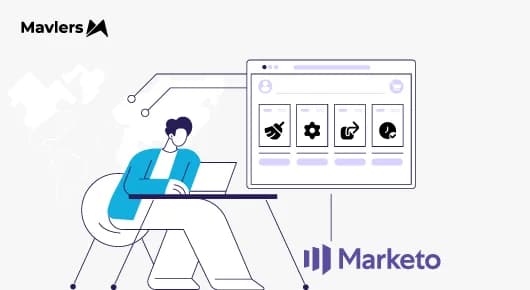
Marketo’s Global Tokens feature fundamentally changes this dynamic along with its analytics. It allows admins to define a token once at the instance (admin) level and surface it across every workspace and program in the organization.
So, if you’re ready to learn how that positively impacts the efficiency of your email campaigns, you have landed at the right place.
Let’s cut to the chase.
What global tokens are (and what changed) in 2025?
To understand the magnitude of this shift, we must first revisit the basics of Marketo’s token architecture and how introducing global scope alters the landscape.
Tokens 101 (quick primer)
Tokens are variables used in Marketo assets such as emails, landing pages, snippets, and smart campaign flow steps to insert dynamic content. They act as placeholders that the system replaces with actual data at the moment of rendering or sending.
- {{system.date}}: Built-in system tokens.
- {{lead.Email Address}}: Person tokens based on database fields.
- {{my.Token}}: Custom tokens created by users to store specific values like event dates, webinar links, or hex codes.
Historically, custom “My Tokens” lived strictly at the Folder or Program level. If you created a {{my.CopyrightYear}} token in a specific webinar program, it only existed inside that program.
If you wanted that same variable in another program, you had to recreate it manually or clone the program. This would create isolated islands of data.
What “global” and “workspace” tokens add?
The new feature introduces a hierarchy that sits above the program level, bridging these islands.
- Global Tokens: Created in the Admin area. These tokens are available to every asset in every workspace across the entire Marketo instance.
- Workspace Tokens: Created at the Workspace level (in the Marketing Activities tree). These are available to all programs within that specific workspace (e.g., “North America” or “EMEA”).
This architecture means you can now author a token once, like your company’s privacy policy URL, and it instantly becomes available to every marketer in every region, without them needing to create it locally.
Where tokens surface in the UI (short)
The user interface splits the management of these tokens based on their scope:
- Global Tokens: Found in Admin → Integration → My Tokens. (Note: This requires specific Admin permissions to view and edit).
- Local/Workspace Tokens: Found in the Marketing Activities tab under the My Tokens tab at the folder or program level.
This split ensures that high-stakes, company-wide data is managed centrally by the CoE, while campaign-specific data remains local to the execution teams.
So, how do decentralized teams benefit from these tokens? Let’s find out.
Why does “define once, update everywhere” matter for decentralized teams?
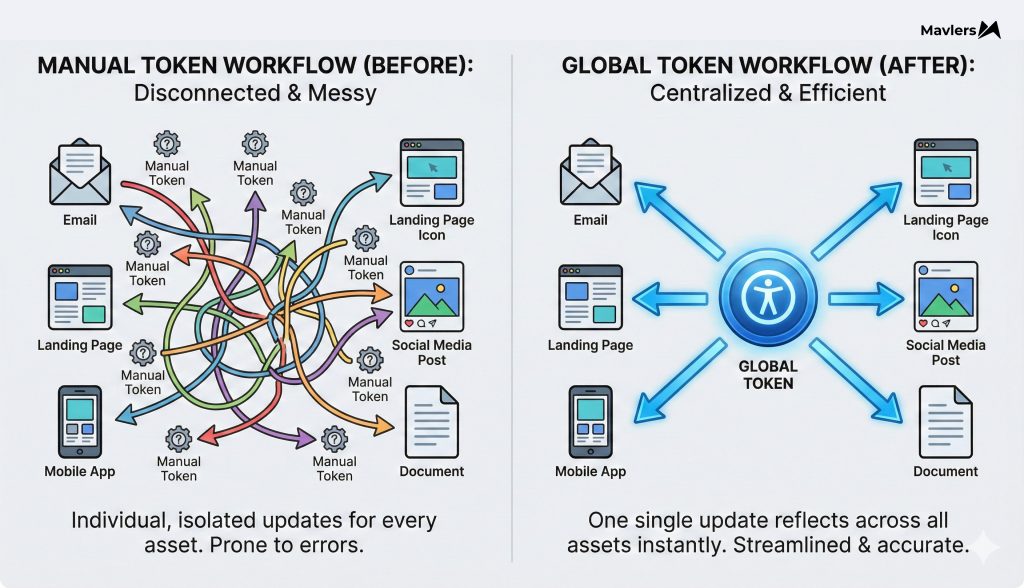
Before global tokens, MOPs teams were stuck in a cycle of redundancy that slowed down execution and increased liability.
Typical pain points before global tokens
- Duplication: The same token (e.g., {{my.FooterAddress}} or {{my.CopyrightYear}}) had to be created manually in hundreds of individual programs. In large enterprise instances, this could mean thousands of redundant data entry points.
- Risk: If the London office updated its legal disclaimer but the New York office didn’t, the brand was exposed to compliance risk. “Version drift” was inevitable as different regions operated at different speeds.
- Time: A simple rebrand could take weeks of manual editing and QA to ensure every live asset was updated.
And what is the impact of global tokens on your business?
Moving to a global “define once, update everywhere” model delivers three key business outcomes:
- Faster compliance changes: Legal, privacy, and copyright updates can be deployed instantly across the entire instance, reducing the window of exposure to fines or litigation.
- Lower risk of brand / legal inconsistencies: By centralizing the “source of truth,” you ensure that no rogue program sends out the 2019 logo or the 2021 Terms of Service.
- Reduced operational overhead: It drastically reduces the time spent on low-value manual updates, freeing up MOPs resources for strategic work like attribution modeling or lead scoring optimization.
But that raises another crucial question: How do these global tokens actually work? Let’s head on to that next.
How global & workspace tokens actually work: Admin and technical walkthrough
Let’s get into the nuts and bolts of setting this up. How do you actually deploy this in a live instance?
First up, you need to learn about the setup and permissions.
To manage Global Tokens, you need the correct role permissions. This is a governance safeguard to prevent junior marketers from accidentally changing the CEO’s name for the whole company.
- Who: Only System Admins or MOPs Leads should hold these keys.
- Where: Go to Admin > Users & Roles > Roles.
- What: Ensure your role has “Access Admin” and specifically check the permission for “Edit Global Tokens.” Standard marketers should not have this permission.
Then, you should be aware of the token types supported.
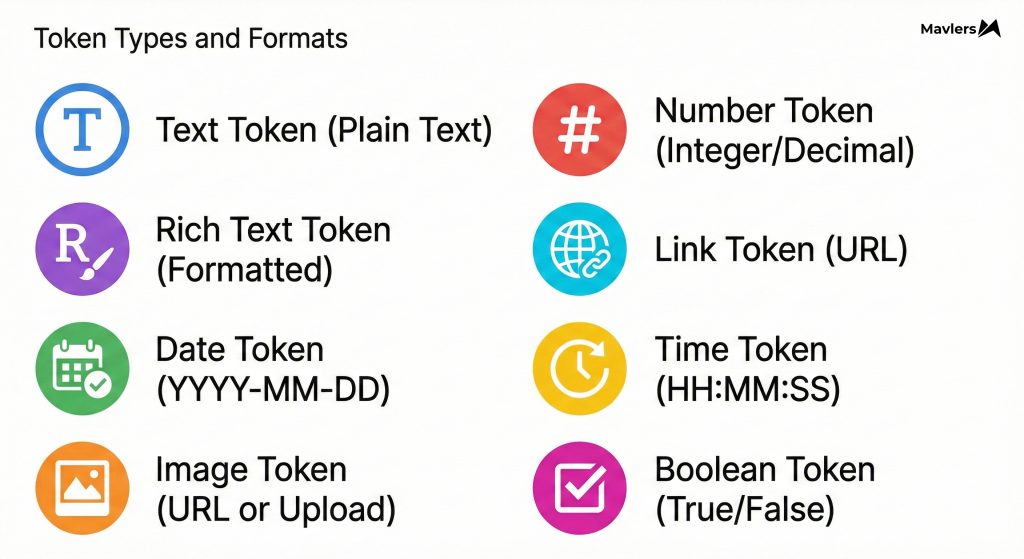
Global tokens support the standard Marketo token types you are used to. Understanding which type fits which use case is critical for a cleaner architecture:
- Text: Simple strings (e.g., Company Name, Phone Number).
- Rich Text: Formatted HTML blocks (e.g., Legal Disclaimers, full Footer blocks).
- Date: Copyright years, fiscal start dates.
- Image: URLs to hosted images (e.g., Logos, social media icons).
- Email Script: Velocity scripts (advanced logic for dynamic greetings or localized content).
- Number: Scoring thresholds or fiscal year integers.
Then comes the inheritance behavior and overrides.
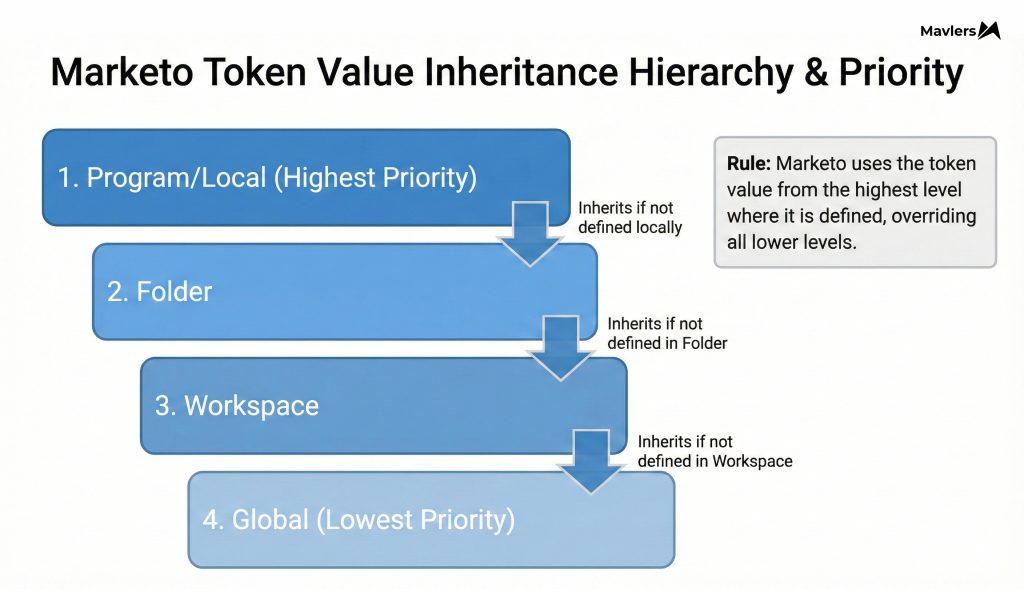
Marketo follows a specific precedence model (inheritance hierarchy) to decide which value to display if a token with the same name exists at multiple levels.
Here is the hierarchy:
- Program/Local Token (Highest Priority – Overrides everything)
- Folder Token
- Workspace Token
- Global Token (Lowest Priority – Default value)
Pro tip: If a local token exists with the same name (e.g., {{my.Logo}}) inside a program, Marketo will use the local version, ignoring the global version.
This is a feature, not a bug. It allows for necessary exceptions.
You can set a global default for {{my.Logo}}, but if a specific “Partner Co-Marketing” program needs a different logo, you can create a local token with the same name to override the global default just for that campaign.
Where to use tokens?
You can use Global Tokens virtually anywhere you use standard tokens:
- Emails & Landing Pages: In copy, headers, footers, and meta tags.
- Snippets: To dynamicize reusable content blocks.
- Flow Steps: In “Change Data Value” steps (e.g., normalizing State codes) or “Send Alert” emails.
For example, update the homepage link image or CEO name, and watch it flow.
Here is a quick workflow to help you get:
- Admin navigates to Admin > My Tokens.
- Finds {{my.Global_CEO_Name}}.
- Changes value from “Old CEO” to “New CEO”.
- Clicks Save.
- Result: Every email draft, approved landing page, and snippet referencing {{my.Global_CEO_Name}} is instantly updated with the new value.
Pro tip: For approved landing pages, you may need to re-approve the assets to regenerate the static HTML with the new token value, depending on your specific instance configuration. Or else, you may have to run through the wall.
Quantifying time savings and ROI (worked examples + formulas)
To secure a budget for a cleanup project or justify the time spent migrating to global tokens, you need to demonstrate the value.
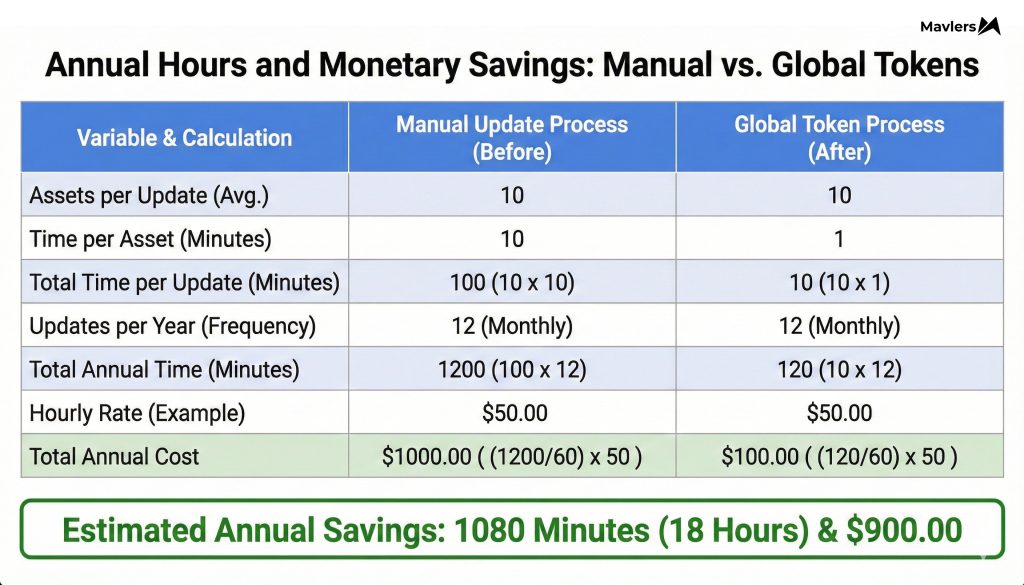
Why should you measure (leading indicators)?
- Time Saved: Hours not spent clicking “Edit Draft” and “Approve.”
- QA Reduction: Fewer assets to manually check means faster cycle times.
- Ticket Volume: A reduction in “Can you fix this typo?” tickets sent to the MOPs queue.
Formula: Annual hours saved
You can use this formula to estimate the efficiency gain for your specific organization:
$$\text{Annual Hours Saved} = \frac{(\text{Workspaces} \times \text{Avg Mins per Update} \times \text{Updates/Year}) – (\text{Time to Update Global} \times \text{Updates/Year})}{60}$$
Here are some variables you’ll need.
- Workspaces: Number of workspaces or program groups impacted.
- Avg Mins per Update: Includes opening asset, editing, saving, QA, and re-approving (conservatively 5–12 mins).
- Updates/Year: Frequency of change (e.g., 1 for copyright, 4 for quarterly offers).
Extended ROI: convert hours to cost (optional)
To put a dollar figure on it:
$$\text{Monetary Saving} = \text{Hours Saved} \times \text{Avg Hourly Cost of MOPs Resource}$$
If your MOPs manager costs $75/hour (fully loaded):
$$12.42 \text{ hours} \times \$75 = \mathbf{\$931.50 \text{ saved per update}}$$
Multiply this by the number of tokens you manage (Logos, Terms, Privacy, Addresses, Social Links), and the annual savings easily reach the tens of thousands.
Compound savings and hidden efficiency gains
- Fewer errors: Reducing manual touches reduces the chance of breaking HTML or typos by ~90%.
- Faster legal responses: The “Cost of Compliance” is high. If a GDPR link is wrong for 3 days, the fine risk is massive. Global tokens reduce this exposure window to minutes.
- Opportunity Cost: Lower QA cycles free skilled staff for strategic work, rather than data entry.
Now, let’s take a look at some expert advice on token governance and naming conventions.
Governance, naming conventions, and change control best practices
Great power requires great governance. If you don’t manage global tokens well, you risk global errors.
Governance model (who can do what)
- Admins: Sole owners of Global Tokens. Only 2-3 people should have “Edit” rights here.
- Workspace Leads: Owners of Workspace Tokens. They manage regional nuances.
- Marketers: Consumers of tokens. They can insert them into assets, but cannot change their definitions.
Pro tip: Use a ticketing system (Jira/Asana) for all Global Token change requests to create an audit trail.
Naming conventions that scale
You must differentiate Global tokens from Local tokens instantly by their name to prevent confusion during asset creation.
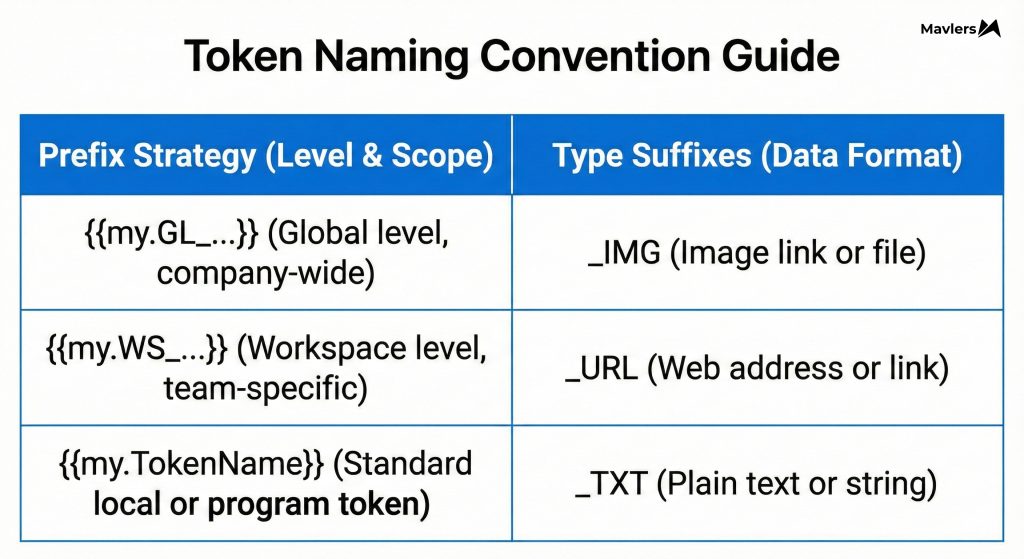
Prefix Strategy:
- Global: {{my.GL_TokenName}} or {{my.GLOBAL_TokenName}}
- Workspace: {{my.WS_TokenName}}
- Local: {{my.TokenName}} (Default)
Type Suffixes:
Adding suffixes helps users know what to expect inside the token:
- {{my.GL_Logo_IMG}}
- {{my.GL_Privacy_URL}}
- {{my.GL_Copyright_TXT}}
Versioning & release notes
Keep a centralized Changelog (a simple shared spreadsheet or Confluence page).
When you update a global token, document:
- What changed? (Old value vs. New value)
- Why? (Ticket #123 – Legal Request)
- Who? (Admin Name)
- Date
For critical tokens, require approval & a scheduled publishing window to coordinate cross-team communication.
QA checklist when updating tokens
Before hitting save on a global token:
- Preview: Check a sample email in a sample program to ensure the token resolves correctly.
- Test Workspace: Verify the token behavior in a Sandbox or “Center of Excellence” workspace first.
- Smoke Test: Click the links. If it’s a URL token, ensure it doesn’t 404.
- Flow Steps: If the token is used in flow steps (e.g., changing a data value), test a dummy lead through the flow.
But the grass won’t always be greener. You will face some challenges along the way.
Pitfalls, limits, and when not to use global tokens
Here are some hurdles you need to overcome to ensure the smooth implementation of global tokens in Marketo.
- Over-centralization risks
Don’t make everything global. If a token needs to change frequently for specific campaigns (e.g., {{my.WebinarDate}}), keep it local. Global tokens are for constants, not variables.
- Locale & language mismatch
Be careful with Global Text Tokens in multi-language instances.
If you set {{my.GL_Privacy_Text}} to “Privacy Policy” (English), it will show “Privacy Policy” in your German emails too, unless overridden.
Solution: Use Workspace Tokens for translated values ({{my.WS_Privacy_Text}}), or keep language-specific text local.
- Permissions & change velocity
If too many people have Admin access, you risk “accidental” global changes. A junior admin might change a logo, thinking it’s for their one program, only to unknowingly change it for the entire company. Lock down permissions strictly.
- Dependency mapping complexity
Avoid “Token Nesting” (putting a token inside another token) at the global level unless absolutely necessary. While powerful, it makes troubleshooting broken renders extremely difficult because the source of the error is hidden two layers deep.
- Feature limitations to check
Always consult the release notes for your specific Marketo instance version. Ensure that the token types you need (like Rich Text vs. HTML) are supported at the global level and that the preview functionality renders them as expected.
Implementation checklist & rollout plan (step-by-step)
Don’t boil the ocean. Roll this out in phases to manage risk.
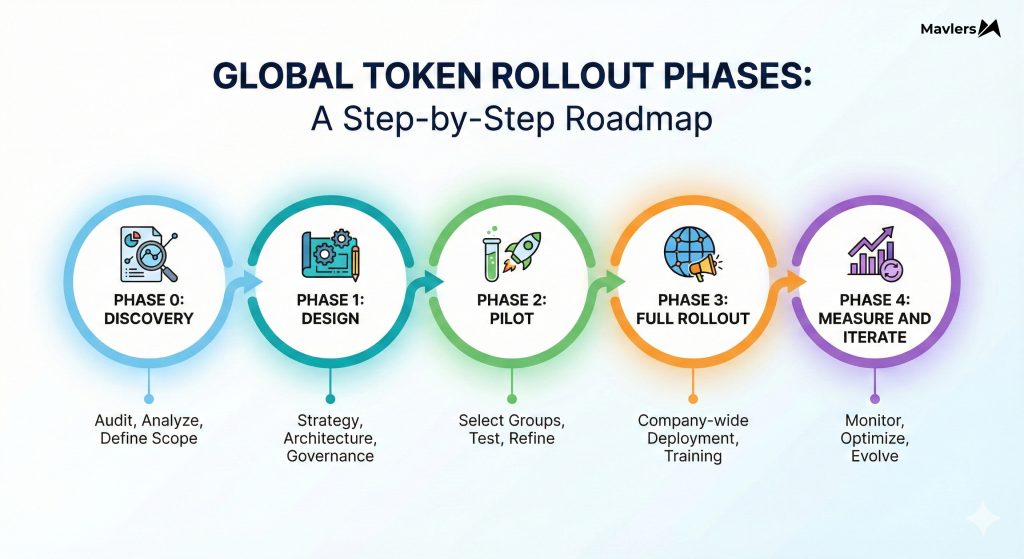
Phase 0: Discovery & inventory
- Audit your current “My Tokens” usage.
- Identify the top 5 high-impact candidates for globalization (Copyright, Privacy Policy, Logo, Address, Social Links).
- Inventory that workspaces currently rely on local versions of these.
Phase 1: Design & governance
- Define your Naming Convention (e.g., my.GL_…).
- Update your internal MOPs documentation/wiki.
- Assign Admin permissions to the CoE team.
Phase 2: Pilot
- Create one Global Token (e.g., {{my.GL_Test_Token}}).
- Insert it into a test email in a Sandbox workspace.
- Verify rendering and inheritance behavior across 2-3 different workspaces.
Phase 3: Full rollout
- Create the core set of Global Tokens.
- Migration: This is the labor-intensive part. You must go into your Email Templates and Landing Page Templates and replace the hardcoded text or local tokens with the new {{my.GL_…}} tokens.
- Tip: Update the Templates first, so all new assets inherit the global token. Migrating existing live assets may require a phased approach.
Phase 4: Measure and iterate
- Track the time saved on the next legal update.
- Monitor ticket volume for token-related errors.
- Report this efficiency win to leadership.
Wrapping up
That brings us to the business end of this article, where it’s fair to say that Marketo’s Global Tokens might seem like a minor technical update in the release notes, but for MOPs leaders, they are a superpower.
They represent a shift from chaos to control.
By implementing Global Tokens, you are not just saving a few clicks.
You are building a scalable, risk-resistant infrastructure that allows your marketing team to move faster with higher confidence.
You are removing the “busy work” of updating footers so your team can focus on the strategic work of driving revenue.
So, if you’re ready to implement the learnings the right way, here are three quick steps to get started.
- Inventory your duplicate tokens today.
- Pilot one global token this week.
- Govern the process to ensure long-term stability.
Stop updating the same footer 50 times. Define it once, and get back to strategy.
The ball is in your yard now.
Here are some more relatable topics you would like to take a look at.
Agentic AI for B2B: How Marketo and Salesforce Compare, and What it Means for Your Strategy
Marketo Data Hygiene: How to Prevent Bad Data at the Source
Marketo Segments vs. Smart Lists: Which One Should You Use and When?