Lifecycle marketing
 Customer data management
 Email campaign production
 Search marketing
 CMS development
 Who we are
 How we work
 Case studies
 Testimonials
 Salesforce Marketing Cloud
 Braze
Braze HubSpot
 Marketo
 Pardot
 DataBricks
 Snowflake
 HighTouch
 RudderStack
 Segment by Twilio
 Videos

We have to be honest:
It takes a special kind of human to be excited about a project defined by overwhelming risk.
Point in case: e-commerce data migration.
Most of us don’t go in search of the kind of re-platforming complexity that can paralyze a business; we face them only because the alternative—stagnation—is an even greater threat.
Long-established e-commerce brands outgrow legacy platforms. And sooner or later, the only way forward is a secure data migration.
But in the world of e-commerce, there is no undertaking more exacting (and intimidating!) than a data migration.
Even for those of us who have spent years in e-commerce data systems, the failure rate of data migration is sobering—
A 2022 Gartner study revealed: 80% of data migration projects fail to meet their objectives. Inadequate planning, insufficient resources, and poor communication being the biggest culprits.
The financial stakes are just as unsettling.
McKinsey predicts that inefficiencies in migration execution will waste nearly $100 billion globally over the next three years.
And why just the waste? The cost is in the data also.
Gartner notes that poor data quality costs organizations an average of $12.9 million annually. If you migrate “dirty data”, you’re just moving the problem to the Shopify storefront.
And it’s your customers also.
There is a common misconception that if password migration gets too hard, you can “just ask customers to reset them.” Do not do this. Research shows that 92% of users will abandon a website rather than go through a password recovery process.
So if you’re planning a Shopify migration, the real question isn’t How fast can we move?
It’s – How do we migrate orders, customers, and passwords without breaking trust, losing data, or forcing customers to start over?
In this guide, we’ll walk through a Data Integrity First framework you should know about beforehand to safely migrate your e-commerce store data to Shopify.
The step-by-step Shopify data migration framework
Many merchants view migrating orders, customers, and passwords into Shopify as a simple copy-and-paste exercise.
If you are that person, you’re already in trouble. Because that has a risk of treating e-commerce data migration carelessly and losing years of loyalty overnight.
The most successful e-commerce data migrations and the ones that preserve the store’s SEO rankings and customer trust—treat this process as a translation, not a transfer.
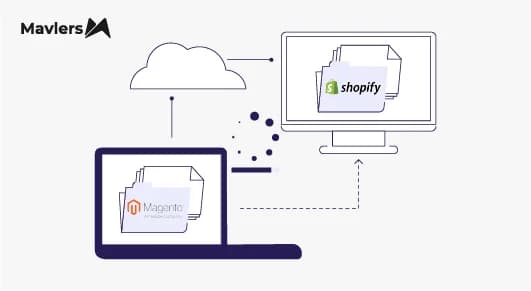
Your old e-commerce platform (be it Magento, WooCommerce, or a custom build) stores information differently from Shopify.
For example, one uses complete to mean “shipped”; the other uses fulfilled. One uses MD5 hashes for passwords; the other uses BCrypt. Field names, schemas, relationships — none of it transfers 1:1.
To span this chasm without losing the customer data integrity, we follow the Data Integrity First Protocol. Drawing from real data migrations and a few salvaged ones, we’ve guided. Here’s how to execute secure data migration on Shopify.
Step 1: The pre-migration data check
You’d never ship broken goods or empty boxes across the country when moving a physical warehouse. Skipping the data audit forces you to do exactly that, digitally: you waste time, money, and resources moving useless data into your new store.
Before you touch a single API endpoint, do this 5-point data audit:
1. Find the data sources
Your old e-commerce platform isn’t the only place valuable data lives in. Over the years, you’ve connected apps, tools, and systems that hold pieces of customer and order information.
Before a more secure data migration, you create a Data Inventory Map listing every system that currently stores customer or order data.
- Loyalty apps (e.g., Smile.io): Do customers have point balances that need to migrate?
- Shopify subscription apps (e.g., Recharge/Bold): Do you have active recurring billing tokens?
- ERP/CRM (e.g., NetSuite/Salesforce): Does your warehouse rely on a specific “Customer ID” format that matches your old site? If Shopify generates new IDs, will your ERP break?
- Custom DBs: Do you have a separate database for “Warranty Registrations” or “B2B Wholesaler Pricing”?
If you forget any of these, customers may lose loyalty points, subscriptions may break, or systems may stop syncing on launch day.
2. Check and fix data quality
Old data is prone to errors or inconsistencies. That’s why it’s essential to run checks (manually or via SQL queries) to identify problems like:
- Orphaned records — Orders that exist in the database but are linked to an invalid or deleted Customer ID.
- Formatting inconsistencies — State fields mixed between “NY”, “New York”, and “N.Y.”
- Missing fields — like shipping weight or variant data.
- Guest checkout duplicates — Identify how many distinct email addresses exist in “Guest Checkout” orders vs. “Registered Accounts.”
3. Map custom fields to Shopify
Legacy platforms like Magento are open-source and flexible. Shopify is structured. You likely have custom fields that don’t have a native home in Shopify.
Map every non-standard field to a Shopify Metafield.
| Existing field | New field in Shopify |
| Delivery date requested | Order metafield |
| Engraving text | Line item property |
| B2B Tax Exempt ID | Customer metafield |
This is also the time to prune. If you have a “Fax Number” field that hasn’t been used in years, do not migrate it.

4. Check legal and compliance requirements
E-commerce data migration is a trigger event for compliance audits (GDPR, CCPA, PCI-DSS).
- GDPR/CCPA: You must strictly respect “Unsubscribed” statuses. If a user opted out of emails on Magento, and you migrate them to Shopify as “Accepts Marketing: True” by mistake, you are breaking the law.
- PCI-DSS (Credit cards): Never attempt to migrate raw credit card numbers or CVV codes. It is illegal. You can only migrate tokens if your payment gateway supports a “Vault Transfer,” otherwise, customers must re-enter payment info.
- The “Right to be Forgotten“: Ensure you filter out any users who previously requested data deletion.
5. Define field transformation rules
This is where you write the rules for how data changes format to fit Shopify and create a “Transformation Logic” document for your developer.
This set of logical instructions tells the migration script exactly how to “fix” or “rewrite” the data before it tries to enter Shopify.
Without them, your developer will either guess (which leads to errors) or the migration tool will skip thousands of rows of “invalid” data. Defining the rules is how you ensure customer data integrity.
| From (old format) | To (Shopify requirement) |
| (555) 123-4567 | +15551234567 (E.164 format) |
| 14-05-2021 | 2021-05-14T00:00:00Z (ISO format) |
| Duplicate SKUs | Add suffix (SKU-001 → SKU-001-A) |
You might be tempted to start with customers—don’t. Products must come first.
Why?
Because you need to pour the foundation and put up the walls before you move in the furniture. In e-commerce data migration, your products are the foundation, and your customers and their orders are the furniture.
If you migrate orders before products, you’ll just see text descriptions without the actual product images, links, or the ability for someone to simply click “Buy Again.”
- The SKU Anchor: Your SKU (Stock Keeping Unit) is the Rosetta Stone here. Shopify matches old products to new ones using this code. If an SKU is missing or duplicated, products get “orphaned”. They show up, but nothing connects, leading to errors like “out of stock” on items you have plenty of.
- The Collection Trap: Shopify handles product categorization (Collections) differently than the deep category trees of other platforms. This is the “trap”—if you try to copy your old category tree directly into Shopify (like forcing sub-sub-categories), your navigation breaks. Instead, you will likely need to map your old “Category IDs” to Shopify “Tags” or “Automated Collections” to preserve your navigation structure.
Step 3: The customer & password dilemma (The hardest bit)
For password migration security reasons, Shopify does not allow the direct import of customer passwords.
No one, not even you as an admin, can grab them in plain text to migrate. Great for stopping hackers, but it means no direct transfer from old platforms.
If you are coming from platforms like WooCommerce or Magento, your customers’ passwords are hashed (encrypted) using specific algorithms like MD5 or SHA-256. Shopify uses BCrypt. These are mathematically incompatible.
When a customer logs in, Shopify’s system expects a BCrypt hash, so the existing MD5 or SHA-256 hashes from another platform are useless on the new system.
So, how do you handle encrypted data transfer for password migration without locking out your user base? You have two paths, dictated by your Shopify plan.
Path A: The “Seamless” route (Shopify Plus only)
If you are on Shopify Plus, you can use Multipass. This is the gold standard for user experience.
- How it works: Multipass isn’t a direct password migration tool. It’s a single sign-on (SSO) solution. You don’t migrate the password. Instead, when a user tries to log in, your system checks the old database credentials. If they match, it generates a Multipass token that seamlessly logs them into Shopify and updates their record in the background. The user never knows a migration happened.
Path B: The “Activation” route (Standard Plans)
If you’re on a standard Shopify plan and still want single sign-on, you’ll likely need to go with a third-party SSO app from the Shopify App Store. It’s totally doable—you’ll just need to be prepared for a bit more setup and a slightly different process than the built-in Multipass option.
Otherwise, there’s another route we love: the Activation strategy.
We call it that because it feels a lot more intentional (and way less stressful) than sending a password-reset email.
Most merchants blast out a bland, robotic “We’ve moved—reset your password” message… and honestly? It looks like a phishing attempt. Customers ignore it, and your open rates will be abysmal.
We, on the other hand, like to frame it as a security upgrade. Use an email marketing tool (like Klaviyo) or Shopify email templates to send a branded “Account Activation” link.
- Subject Line: “Action Required: Verify your account for our new security upgrade.”
- Body: “We’ve upgraded our platform to give you a faster, more secure shopping experience. Please click below to activate your account and access your order history.”
Our two cents:
The “Activation Page” customers land on should not be generic. Customize this page! Add your logo, a warm welcome message, and maybe a “Welcome Back” discount code.Make the friction of creating a new password feel like a rewarding experience.
Some more secure alternatives to password migration in Shopify:
| Method | Why it works |
| One-time login links / magic links | Email-based access without password reset |
| Staggered password refresh | Avoids customer shock & large-scale drop-offs |
| Event-triggered login refresh during checkout | Helps retain purchasing intent |
Step 4: Migrating orders (The high-stakes phase)
Data integrity is frequently compromised at this point as migrating orders is the most complex part of the process.
An order is not a single data point; it represents a specific transaction involving a customer, a product’s price at that time, and the applied tax rate.
You can preserve your analytics and reporting only by handling Shopify’s strict API limitations for historical data.
What limitations?
Firstly, migrated orders in Shopify, technically different from live orders, are treated as “archived” history. Which means if you’re trying to trigger new fulfillment workflows, print shipping labels, or process refunds through Shopify Payments on those migrated records… it aint working.
Instead, the strategy here should be –
Not to attempt to migrate “Active” or “In-Process” orders. Finish all active orders (shipped, refunded) on your old site first.Only migrate orders that are fully Completed or Cancelled.
Secondly, legacy platforms often use a single status like “Complete.” Shopify splits this into two distinct fields. So, you must map these correctly for secure data migration.
Financial Status: Always mark old orders paid. If you mistakenly map them as pending, Shopify’s analytics will show millions of dollars in “Unpaid” revenue.
Fulfillment Status: Set to fulfilled. (or “cancelled” if it was). If you map them as null (unfulfilled), your warehouse team might accidentally try to ship products sold three years ago.
Lastly, create an order via the API, Shopify assigns it the “Created At” date of today. This creates a disaster where your “Sales Over Time” report shows $0 for the last 5 years and $5 million for today.
The fix?
Map your old order date specifically to Shopify’s processed_at field. This overrides the system default and places the revenue in the correct month and year for historical reporting.
The Critical Warning: Before you import a single order, go to your Shopify Admin→Settings→Notifications and disable all order emails. If you skip this, your import script will inadvertently email thousands of customers confirming their “new” order.
Step 5: Validation
You’ve moved the data. But is it right? Do not launch until you’ve passed the Sum & Spot Test.
- The Sum Test (Reconciliation) : Run a “Total Revenue” report for the last fiscal year on your old platform. Run the same report on Shopify. The numbers should match within a 0.05% margin (slight variations in tax rounding are normal). If they differ by 10%, you have a “Financial Status” mapping error.
- The Spot Check (Sample verification): Pick 5 random orders—one from last week, one from last year, and one from five years ago. Open them side-by-side in both systems. And check:
Is the shipping address identical? Did the discount code transfer? Does the line item link to the correct product image?
FAQs: Shopify data migration, orders, customers & passwords
What’s the best way to migrate data to Shopify from another platform?
The best method for secure data migration on Shopify depends on your technical expertise and the volume of data you need to move. Options range from low-complexity manual transfers to high-complexity custom solutions:
- Manual transfer (Simplest): Best for small stores with limited products. Simply copy and paste content from your old site to Shopify.
- CSV import: Export your current data into CSV files and upload them directly to Shopify. Ideal for standard product and customer lists.
- Migration apps: Use an automated tool from the Shopify App Store (like Matrixify or Cart2Cart) to transfer data between platforms.
- Hire a Shopify partner: Contract a certified agency to manage the end-to-end migration.
- Custom API solution (Most complex): Develop (or hire a developer to build) a custom migration script using the Shopify Admin API to handle complex or non-standard data structures.
How long does a Shopify data migration typically take?
It depends on data volume and complexity, but here are the benchmarks:
- Simple Store (<1k SKUs, standard data): 1–2 weeks.
- Mid-Sized Store (Complexity, reviews, blogs): 3–5 weeks.
- Enterprise Store (ERP integrations, huge history): 2–4 months.
What customer data can be migrated into Shopify?
You can migrate nearly all customer profile information and interaction history, with specific exceptions for security data. The transferable data includes:
- Core profile details: First and last name, email address, and phone number.
- Address book: Multiple shipping and billing addresses.
- Marketing & organization: Marketing consent status, customer tags (for segmentation), and tax-exempt status.
- Custom data: Any non-standard fields can be migrated using Shopify Metafields.
- Notes: Internal administrative notes attached to the customer profile.
Can I migrate customer passwords to Shopify?
Directly, no. You cannot copy-paste passwords because Shopify uses a different encryption method (BCrypt) than other platforms like Magento or WooCommerce. You have two options. If you are on Shopify Plus, you can use Multipass SSO to log users in seamlessly. If you are on a Standard Plan, you must use the “Account Activation” strategy, sending customers a link to set a new password.
Can I transfer saved credit card information to Shopify?
No. Due to strict PCI-DSS compliance laws, raw credit card data cannot be exported or imported between platforms. Your customers will need to re-enter their payment details securely during their first checkout on the new Shopify store. Be sure to communicate this to them in advance to avoid frustration.
Will migrating to Shopify hurt my SEO rankings?
Not if you execute a proper 301 Redirect strategy.
When you move to Shopify, your URL structure changes. If you do not map the old URLs to the new ones using 301 Redirects, Google will see “404 Errors” and drop your rankings. If redirects are done correctly, you should retain your traffic.
How do I migrate orders to Shopify?
Orders can be moved using the Store Importer app, CSV import, or third-party migration tools such as Matrixify or LitExtension. Imported orders are stored as archived records, meaning they cannot trigger new fulfillment or refund workflows like standard live Shopify orders.
Can imported orders be edited or refunded in Shopify?
No. Imported orders are read-only historical data. Refunds must be processed manually using your original payment gateway, not directly inside Shopify.
Will my customers have to create new accounts on Shopify?
No, they just need to “Activate” them.
Their data (Name, Address, History) is already there. They simply need to click a link to set a new password. They do not need to re-type their shipping information.
What’s the safest way to migrate large data sets?
For stores with thousands of SKUs, high-volume transaction history, or B2B custom pricing, the safest method is using a specialist Shopify migration agency.
More resources: