Lifecycle marketing
 Customer data management
 Email campaign production
 Search marketing
 CMS development
 Who we are
 How we work
 Case studies
 Testimonials
 Salesforce Marketing Cloud
 Braze
Braze HubSpot
 Marketo
 Pardot
 DataBricks
 Snowflake
 HighTouch
 RudderStack
 Segment by Twilio
 Videos

The arrival of Salesforce Einstein Copilot Builder marks a turning point for automation within the platform. AI copilots can now be designed, customized, and deployed directly inside Salesforce, giving teams full control over how generative intelligence assists users.
Instead of being limited to pre-trained models, Salesforce Einstein Copilot Builder allows creation of domain-specific copilots that understand data models, business logic, and tone of interaction within the Salesforce platform. As part of the ecosystem of Salesforce AI tools, it bridges the gap between data, logic, and conversation in a unified interface.
In this guide, we cover how to set up Einstein Copilot Builder, design real-world actions that work, and see how teams are turning hours of manual work into a few natural sentences.
Understanding the platform architecture
Einstein Copilot Builder is designed on top of Salesforce’s unified metadata framework, allowing you to turn existing automations into conversational capabilities instantly. There’s no need to rewrite or refactor code; everything you’ve already built becomes part of your AI assistant’s skill set.
Think of it as Salesforce’s “left brain–right brain” collaboration: the right brain interprets human intent through natural language processing, while the left brain executes precise, rule-based logic to chain together the right actions.
Source: Validity
The result is a conversational AI that understands context and acts with purpose.
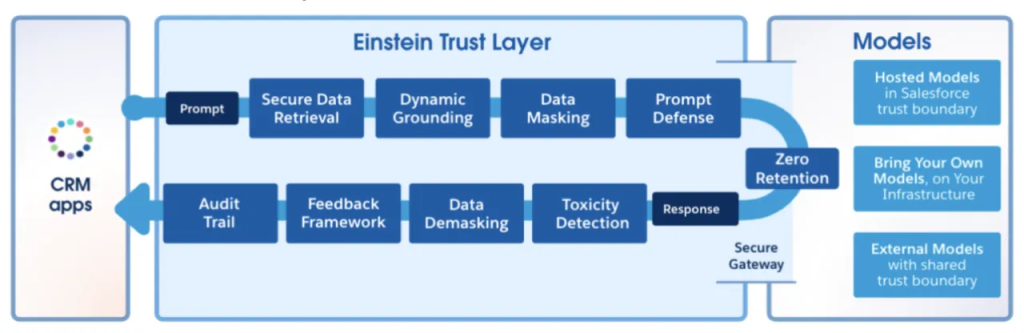
The trust layer runs underneath everything:
- Pattern-based PII/PHI detection scans every request automatically
- Zero data retention with vendor LLMs is enforced by default
- Toxicity scoring happens behind the scenes, with feedback loops to improve prompts
- Field-level masking is coming; pattern detection is already active
Einstein Copilot isn’t a collection of disconnected bots—it’s a single, universal assistant that spans Salesforce’s entire ecosystem: Sales, Service, Commerce, and Marketing. Each function draws from the same foundation but activates distinct action sets tailored to its workflows.
Source: Salesforce
In essence, you’re not building multiple copilots—you’re orchestrating one intelligent layer of AI reasoning that adapts seamlessly across every business domain.
How to set up Salesforce Einstein Copilot
1. Initial setup & enabling
Before you can start customizing, make sure you have the required licenses and that Einstein Copilot is enabled in your org. Then:
- Enable Generative AI: From Setup, search for Einstein Generative AI and switch it on.
- Enable Einstein Copilot: Go to Setup → Quick Find → Copilot → Einstein Copilot, then toggle the feature to make it available across your org.
2. Assign user permissions
Next, assign the right Permission Set Groups (PSGs) to control access and capabilities.
- Copilot Salesforce User PSG: For end users who will only access the Copilot assistant.
- Copilot Salesforce Admin PSG: For admins or developers who need to build, manage, and customize Copilot in the Copilot Builder.
You can assign these PSGs by navigating to Setup → Users → [Select User] → Permission Set Group.
3. Customize with Copilot Builder
With Copilot enabled and permissions set, it’s time to personalize the experience using Copilot Builder:
- Access the Builder: Go to Setup → Einstein Copilot, select your Copilot, and then click Open in Builder.
- Language & Tone: Adjust the tone (e.g., Neutral, Enthusiastic) under Language Settings.
- System Messages: Modify the Welcome and Error Messages under System Messages to align with your brand’s voice.
- Activation/Deactivation Cycle: Deactivate Copilot to make any structural changes, then reactivate to push updates live.
Note that you can only edit Language Settings when Copilot is deactivated — deactivate, make changes, then reactivate to publish.
Implementing Salesforce Einstein Copilot for marketers
Successful implementations follow a three-phase approach that prevents over-engineering:
- Phase 1: Launch with the out-of-the-box actions—query records, summarize, draft emails, and retrieve knowledge articles. Let users experiment and surface real use cases before investing in custom engineering. Actual behavior will reveal what matters more accurately than assumptions.
- Phase 2: Only build Copilot actions for workflows that take five or more clicks. If it’s a one-click task, keep it as a button.
- Phase 3: Begin by refining standard actions—especially summarization—through custom prompt templates grounded in your objects and data sources. Develop net-new actions only when the built-in ones can’t be adapted effectively.
Building custom actions that actually work
Now, in traditional Salesforce development, when you create a Flow, Apex class, or custom field, there’s always a “Description” field. Most developers leave it blank or write something minimal like “Gets contact info” because nobody reads it – it’s just internal documentation.
With Salesforce Einstein Copilot, that changes completely.
When you turn a Flow or Apex method into a Copilot Action, that description field becomes the primary way the AI decides. For that, you’ll need three levels of detail:
- Action-level instructions: What this does, when to use it, which actions must run before it (query records, identify by name).
- Input descriptions: Not just “ZIP code” but “a 5-6 digit postal code for US addresses.”
- Output descriptions: Whether to show in conversation, what downstream actions might consume it.
Create 20-30 test utterances per action. Users will phrase requests dozens of different ways. Test variants to ensure your action triggers reliably regardless of phrasing.
Source: Salesforce
(Utterances refer to the different ways users might phrase the same request. You need to test variations like this to make sure the AI consistently picks your action regardless of how people phrase it. If it only works for 2-3 phrasings, you’ll have frustrated users.)
Choosing between Apex, Flows, & Prompt Templates
The platform gives you three primary tools, each with distinct strengths that solve different business problems. Understanding when to use each prevents unnecessary complexity while maximizing reusability.
Use Apex for:
- External API integrations requiring authentication
- Complex data transformations before sending to LLMs
- Operations needing transaction control or bulk processing
Use Flows for:
- Multi-system orchestration already built in your org
- Screen-based disambiguation when multiple records match
- Existing automation you want to voice-enable quickly
Use Prompt Templates when:
- Raw API responses need formatting (JSON to readable summaries)
- You need reasoning/planning capabilities (schedule optimization, content generation)
- Standard actions don’t format outputs correctly for your business context
When it comes to using Einstein Copilot for marketers, the real power emerges when you chain them together.
Take a retail service scenario: a Copilot action triggers a Flow that calls an external pricing API, retrieves competitive rates, and feeds that data into a prompt template to generate a dynamic discount recommendation. The Copilot then presents the result in plain language to the sales rep.
Each layer handles its specialty, creating a seamless, intelligent interaction.
Making smart model choices
Model selection directly impacts whether your copilot actually solves business problems or frustrates users with poor results:
- Reasoning tasks: Use GPT-4 or GPT-4 Turbo; GPT-3.5 struggles with complex planning and often ignores constraints.
- Custom prompt templates: Offer full model flexibility. Integrate with Azure OpenAI, bring your own fine-tuned models, or use Einstein-hosted models.
Managing ambiguity & context in conversations
Real conversations are rarely clean or predictable, so Copilot manages ambiguity through built-in logic you don’t need to code. When multiple records match a query, it automatically prompts users to clarify, with query actions handling disambiguation natively.
Conversational memory persists only within a single session, allowing natural follow-ups like “show me open deals” and “summarize the second one.” Once the session ends, context resets, so essential state must be stored in CRM records or re-established on restart.
For multi-turn or stateful processes such as approvals or data collection, developers must pass a full conversation history with each API call. The framework supports channels such as WhatsApp, SMS, Slack, and web chat, but each requires complete context in every request since Copilot doesn’t retain cross-session state.
Salesforce Einstein Copilot use cases
Einstein Copilot is designed to simplify how teams work, turning everyday Salesforce interactions into natural, conversational experiences. These capabilities make it one of the most practical Salesforce AI tools for enterprise productivity.
Here’s how different workflows come to life:
- Sales insights on demand: Ask questions like “Which accounts are assigned to me?” or “What’s closing this month?” to instantly pull account lists, deal summaries, and opportunity data without switching screens.
- Personalized product guidance: Get AI-driven product suggestions based on industry, account history, and catalog data, or check discount policies.
- Competitive intelligence: Retrieve real-time market updates and competitor insights via integrated APIs without manual research.
- Meeting preparation: Surface pain points, call summaries, and insights from meetings stored in Data Cloud or unstructured sources like transcripts and recordings.
- Automated document creation: Generate invoices or quotes through natural language requests as Copilot chains actions like record lookup, product match, and API integration automatically.
- Mobile task creation: Log notes or create tasks by voice or text (“Create a follow-up with Ben tomorrow”), turning routine updates into quick, frictionless interactions.
- Conversational knowledge search: Ask questions directly and get instant answers from knowledge articles, making organizational information accessible instantly.
- Service agent productivity: Quickly ramp up on active cases by asking “Summarize the most recent case for Rachel Chomsky,” getting instant context without screen-hopping. Agents can also query the knowledge base conversationally to get precise answers with article links, reducing time spent searching for information.
- Utilities and energy billing resolution: Automate case troubleshooting for high bills by cross-referencing invoices with weather data and service outage records. Copilot can generate formatted analysis reports for agents, removing the need to manually gather data from multiple systems.
- Sales lead management: Check pipeline health with “What is the total value of my opportunities closing this month?” or instantly identify prospects by asking “Show me leads with the status of new.” Copilot can also draft personalized outreach emails grounded in CRM data and hand them off for one-click editing.
- Custom object summarization: The summarize action works for both standard and custom objects, allowing organizations to tailor summary behavior for unique data models using Prompt Builder.
- Cross-system data integration: Create custom actions that connect Salesforce with external systems to check inventory, suggest products, or surface relevant account news from the web.

Measuring business impact & ROI
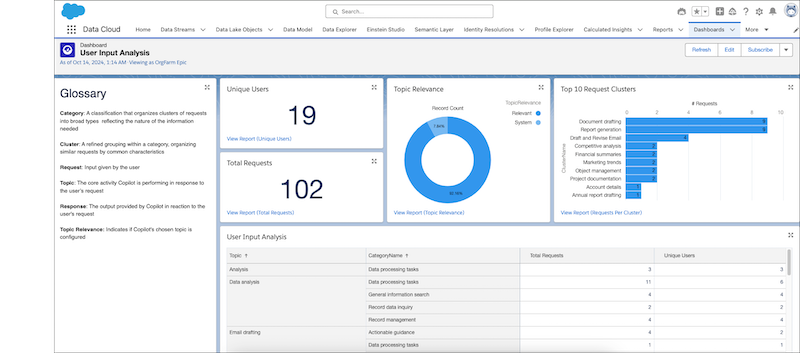
Now that you know how to use Einstein Copilot Builder, a word on measuring its business impact. The built-in analytics dashboard focuses on metrics that demonstrate business impact:
- Action usage frequency: Identifies which custom actions are truly adopted versus those rarely used.
- User engagement rates: Show who’s actively using Copilot and who may need additional training or better workflow alignment.
- Response duration: Flags performance issues. If replies take too long, users disengage.
- Error patterns: Expose recurring prompt failures, guiding action refinements.
- Time saved per transaction: This is the key ROI metric. When a five-minute task shrinks to seconds, track before-and-after benchmarks to quantify productivity gains in executive terms—hours saved per employee per week, multiplied by fully loaded costs.
Risk management & compliance while using Salesforce AI tools
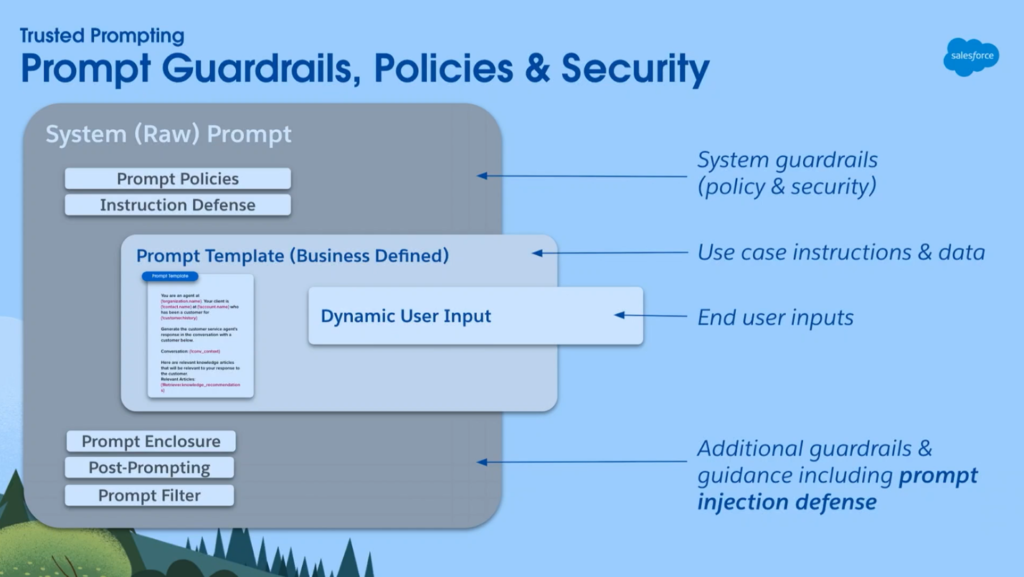
Copilot’s architecture is designed to prevent hallucinations by default. It only operates within the boundaries of configured actions, so it can’t invent data sources or unsupported capabilities. When users request something beyond its defined scope, Copilot clearly responds with “I can only help with these tasks,” listing the available options. This enforced limitation also functions as a built-in compliance control.
Source: Salesforce Ben
In high-regulation environments—like pharmaceuticals or finance—Einstein Bots may remain the safer option. Bots follow deterministic intent-to-action flows, ensuring predictable outcomes, whereas Copilot’s adaptive reasoning favors flexibility and efficiency. The right fit depends on your organization’s risk profile and compliance obligations.
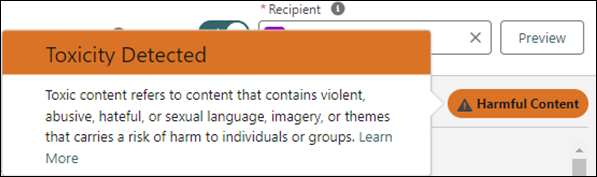
While bias detection can’t yet be customized, every Copilot response is automatically scored for toxicity. A feedback loop lets teams flag problematic outputs to refine future behavior.
For now, the focus is on working within these safeguards and using well-crafted prompts to guide the system away from sensitive or biased content.
Embrace the strategic shift—with Mavlers
Traditional enterprise software required users to learn where features live, what fields mean, and how processes connect across systems. Copilot inverts this relationship: the system learns your business logic through action configurations and descriptions, then adapts to how users naturally express intent in conversation.
The metadata you’ve accumulated over years—custom objects, validation rules, flow logic, Apex business layers—becomes the knowledge base for conversational AI. You’re not starting from scratch or rebuilding processes; you’re making existing investments conversationally accessible to users who may never read a user guide or complete training.
Need help leveraging Einstein Copilot for marketers? Schedule a no-obligation call with one of our SFMC experts today!