Lifecycle marketing
 Customer data management
 Email campaign production
 Search marketing
 CMS development
 Who we are
 How we work
 Case studies
 Testimonials
 Work samples
 Salesforce Marketing Cloud
 Braze
Braze HubSpot
 Marketo
 Pardot
 DataBricks
 Snowflake
 HighTouch
 RudderStack
 Segment by Twilio
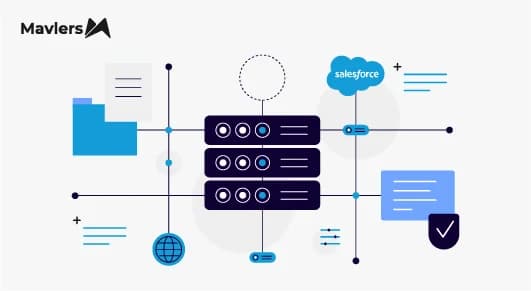
The Summer ’26 release for Marketing Cloud Engagement shipped one of the more consequential additions the platform has seen in years: an MCP server. It lets AI assistants like Claude Code and Gemini CLI operate against your Marketing Cloud Engagement account through natural language. Salesforce is hosting the server itself. There is no middleware, or custom Apex, or third-party integrations.
For teams running content production, journey ops, or SQL-heavy data extension work, this changes the unit of effort for a meaningful chunk of routine tasks.
This post walks through what the release is, how the underlying pieces fit together, how to set it up against Claude Code, where we think its value lies, and where it might miscarry. Let’s begin.
What the Salesforce Summer 26’ MCP release is about
Salesforce has made a hosted MCP server available as part of Marketing Cloud Engagement, with separate endpoints for the US and EU regions. Here are the key aspects of the release:
- No infrastructure setup is required. You only need to configure an Installed Package within Marketing Cloud Engagement.
- The server runs on Salesforce infrastructure and is accessed over HTTPS.
- There is no additional license cost for the MCP server itself; you pay only for the tokens your AI assistant consumes, on whatever contract you have with the LLM provider.
- Once connected, you can ask an AI assistant to perform operations that would normally require working with the UI and a developer.
Reading content, querying data extensions, modifying journeys, and generating or testing SQL can now happen through a simple conversation instead of a support ticket.
What’s an MCP server?
A Model Context Protocol (MCP) server acts as a controlled gateway between an AI assistant and the system it operates. In Marketing Cloud Engagement, it sits between your AI client and your account, translating natural-language requests into platform API calls.
It does not store data, run the AI model, or maintain a persistent connection. Access exists only during an authenticated user session and ends when the session closes.
There are 3 components working together. It helps to be precise about which one does what:
- The LLM is the reasoning layer. It reads the request, works out what you want, and decides which steps will get you there. It includes Claude Sonnet, Claude Haiku, Claude Opus, and Gemini.
- The client is the application running on your machine. This includes Claude Code, Gemini CLI, or any other MCP-aware tool. It is the layer you interact with directly. The client’s job is to take your prompt, hand it to the chosen LLM, manage the OAuth handshake with the MCP server, and then surface the final result back to you in readable form.
- The MCP server is where things actually happen. Once the LLM decides which tool to invoke, the server receives that call, runs the corresponding operation against Marketing Cloud Engagement, and sends the result back up the chain.
How to set up an MCP server in Marketing Cloud Engagement
The setup is essentially a standard Installed Package flow with two MCP-specific URLs added at the end. If your team has ever created an API integration in Marketing Cloud, none of this will be unfamiliar.
Step 1
Install your AI assistant first. Before configuring the platform, make sure Claude Code (or Gemini CLI) is installed locally and working correctly.
Step 2
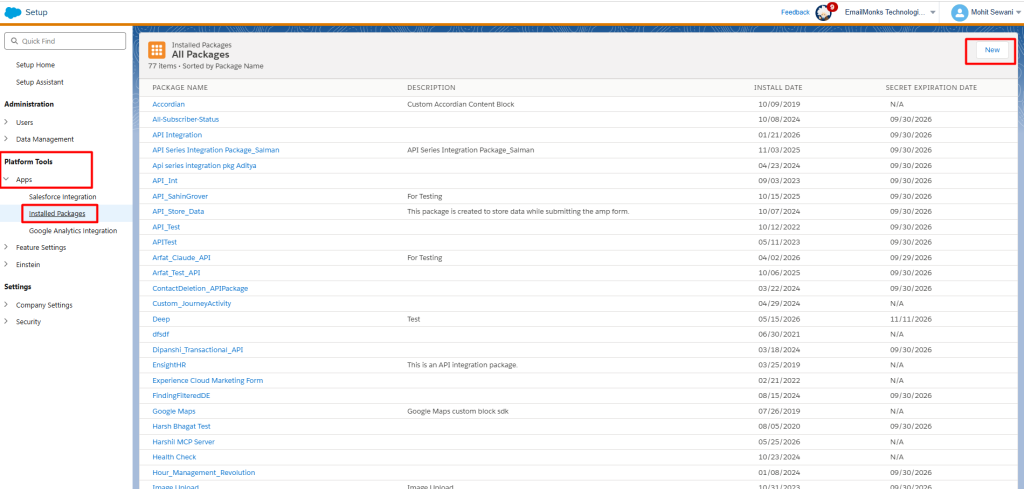
Create an Installed Package in Marketing Cloud Engagement. Inside Setup, go to Platform Tools → Apps → Installed Packages → New. Give the package a name, and save.
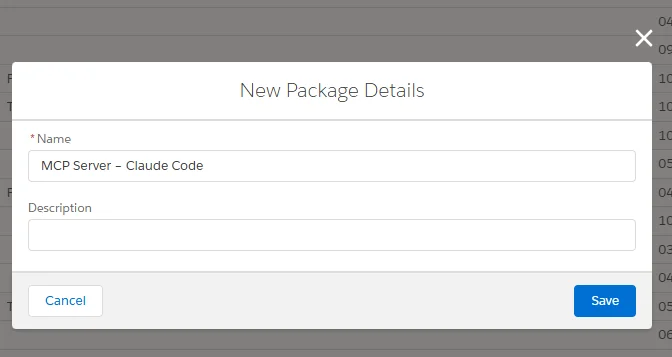
The Help documentation instructs you to select “Other” for the category, but currently, category selection is not available.
Step 3
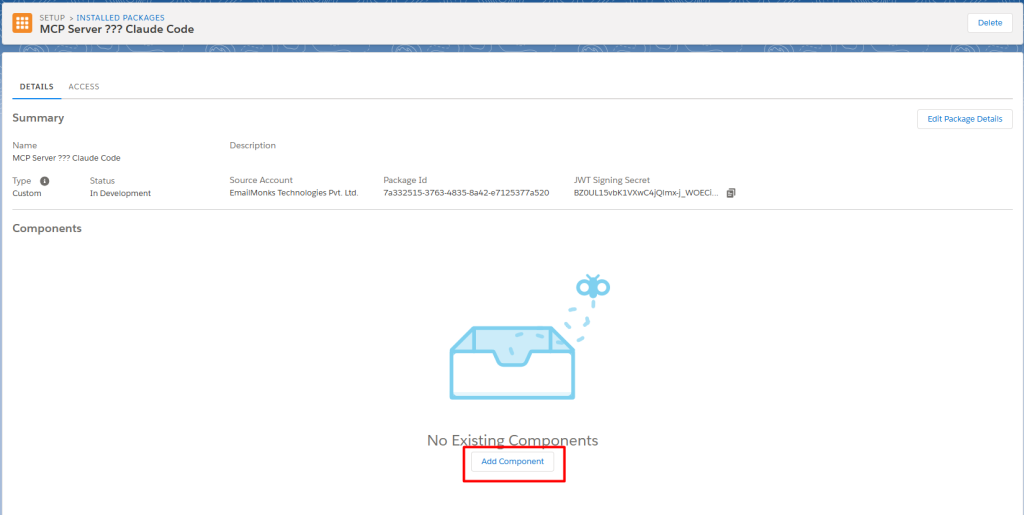
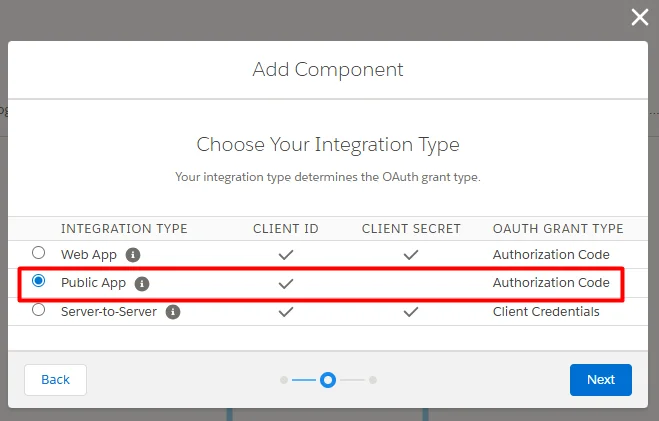
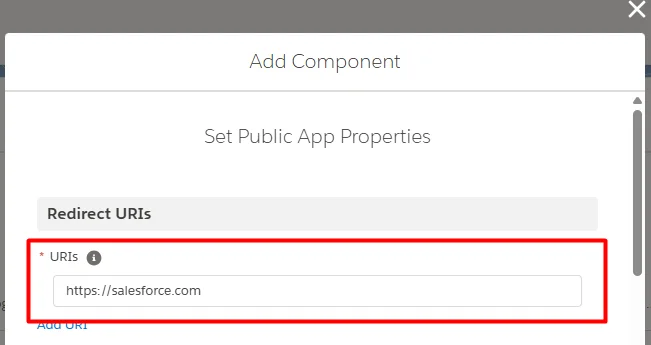
Add an API Integration component. On the package detail page, click Add Component, choose API Integration, then select Public App as the integration type. For the Redirect URI at this stage, enter https://salesforce.com as a placeholder for now. You will be replacing it shortly.
Step 4
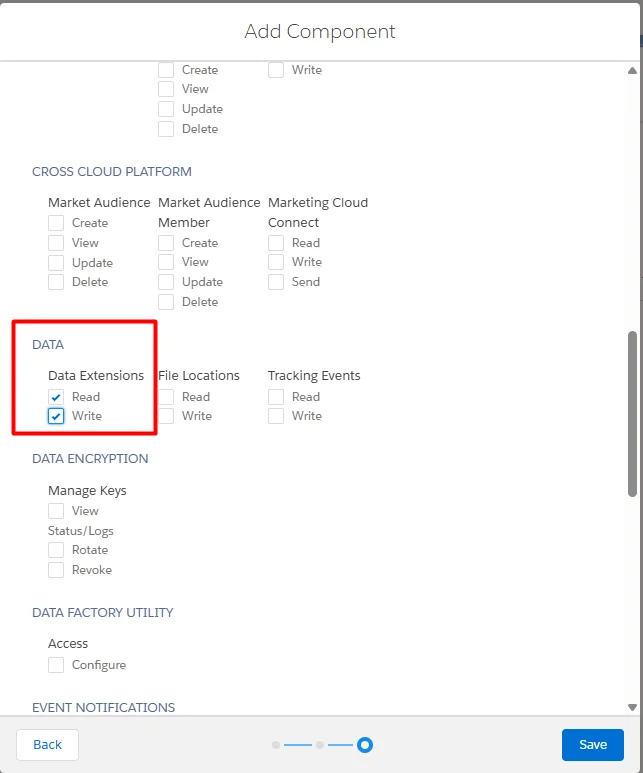
Choose your permission scopes carefully. This is the most important step in the entire setup, and the one most teams will rush. The scopes you grant here define what the AI assistant can do in your account. If you only need it to read and write data extensions, grant only:
Data | Data Extensions | Read
Data | Data Extensions | Write
Avoid granting broad scopes “just in case.” You can always expand permissions later. Recovering from an over-permissioned assistant is far more difficult.
Step 5
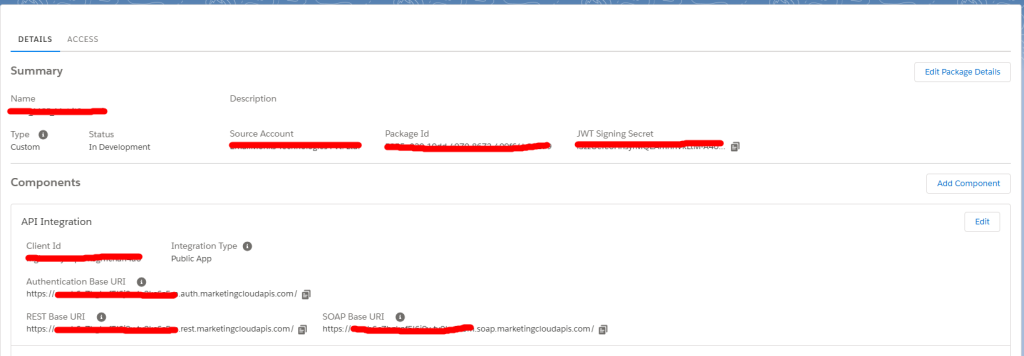
Grab your Client ID and Tenant ID. The Client ID is the displayed 24-character alphanumeric string. The Tenant ID the is the 28-character string that appears as the subdomain of your authentication URI.
For example, if your Authentication Base URI is https://mcphchq9d5b8mlzeyc2v1example.auth.marketingcloudapis.com/, then your tenant ID is mcphchq9d5b8mlzeyc2v1example
Step 6
Update the Redirect URI with the real callback. Edit the API Integration, replace the placeholder URI with the regional callback URL:
- US:
https://mai-mce-mcp-cdp1.sfdc-yfeipo.svc.sfdcfc.net/t/{tenantId}/c/{clientId}/api/mcp/oauth/callback - EU:
https://mai-mce-mcp-cdp1.sfdc-yzvdd4.svc.sfdcfc.net/t/{tenantId}/c/{clientId}/api/mcp/oauth/callback
Substitute your actual tenant ID and client ID from the previous step. Choose the nearest region for lower latency; it does not affect data storage, as neither server stores data.
Step 7
Configure Claude Code to use the MCP server. The MCP server URL you give to Claude Code is the same as the redirect URI but without the /oauth/callback suffix, as shown:
- US:
https://mai-mce-mcp-cdp1.sfdc-yfeipo.svc.sfdcfc.net/t/{tenantId}/c/{clientId}/api/mcp - EU:
https://mai-mce-mcp-cdp1.sfdc-yzvdd4.svc.sfdcfc.net/t/{tenantId}/c/{clientId}/api/mcp
In these URLs, replace {tenantId} with your tenant ID and {clientId} with your client ID.
For example, if you use Claude Code, run this command at the command line to connect to the US-based MCP server, replacing CONFIG_NAME with a name for the server connection.
claude mcp add \
  -s user \
  --transport http \
  CONFIG_NAME \
  https://mai-mce-mcp-cdp1.sfdc-yfeipo.svc.sfdcfc.net/t/{tenantID}/c/{clientID}/api/mcp
Step 8
Connect to Claude Code. Now, we are going to use Visual Studio here for the connection:
- Install VS Code on your system.
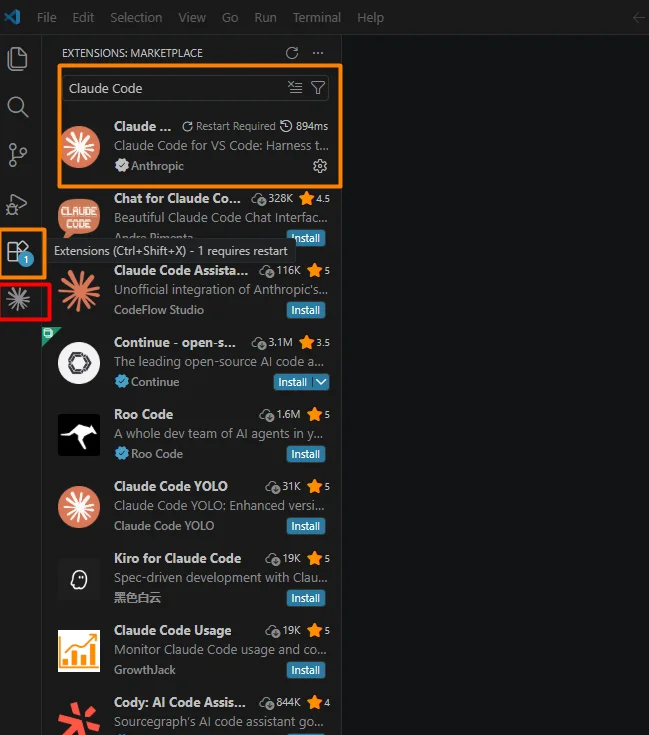
- Go to VS Code Market Place and install the Claude Code Extension. Once the Claude Code Extension has been installed within VS Code then you can see the Claude Icon to be visible below the Market Place Icon.(Highlighted in Red in the attached Screenshot)
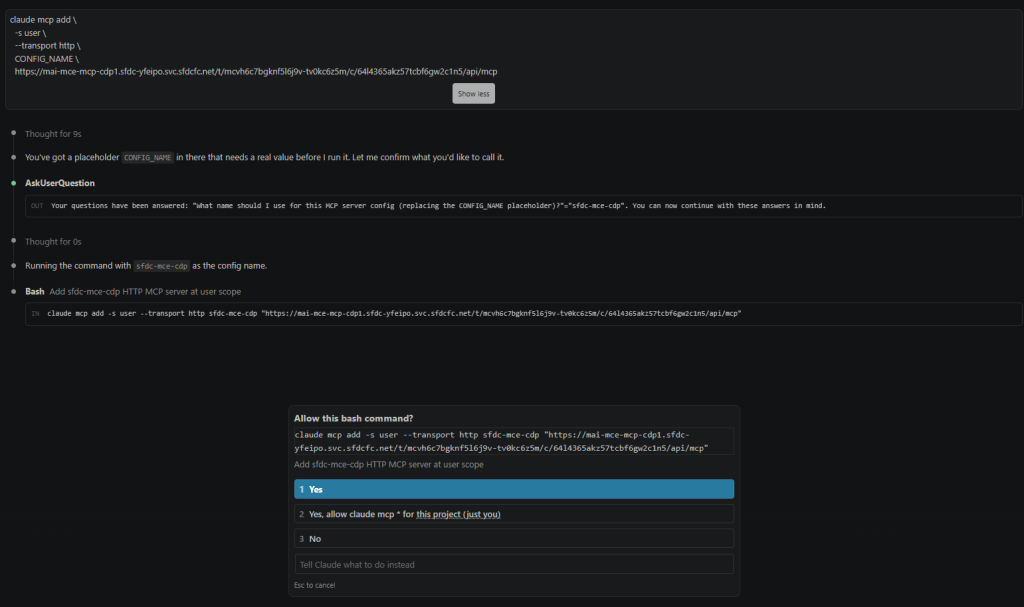
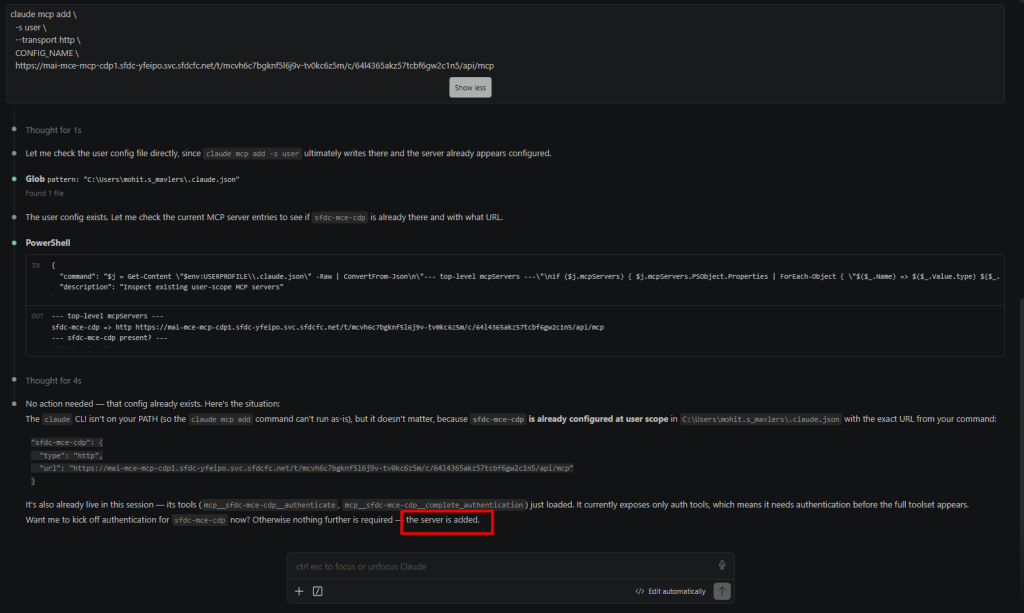
- Run this command at the command line to connect to the US-based MCP server, replacing CONFIG_NAME with a name for the server connection, as shown below.
claude mcp add \
  -s user \
  --transport http \
  CONFIG_NAME \
  https://mai-mce-mcp-cdp1.sfdc-yfeipo.svc.sfdcfc.net/t/{tenantID}/c/{clientID}/api/mcp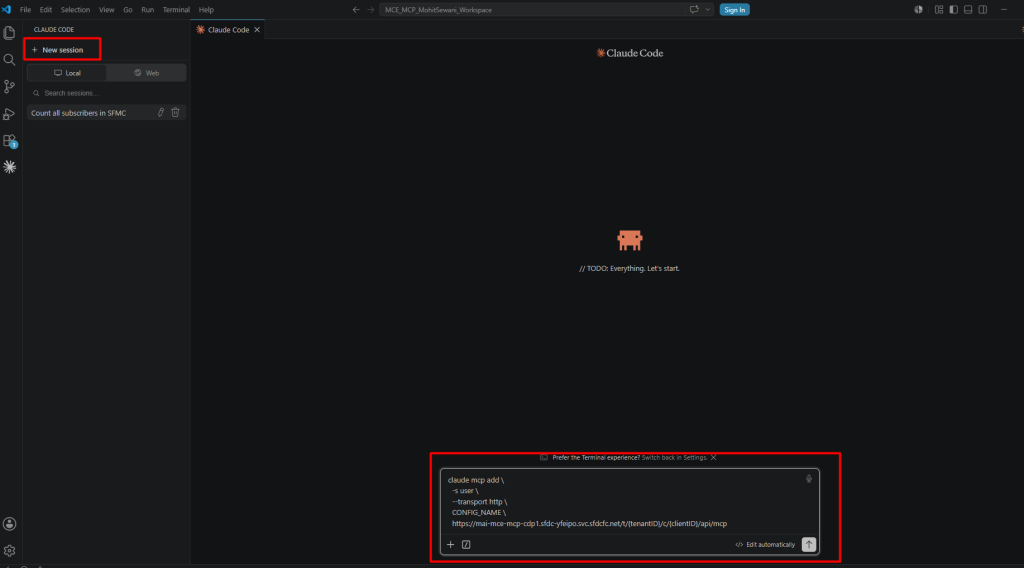
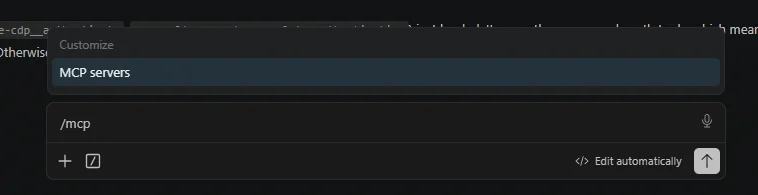
- Type /mcp in the chat and click Enter.
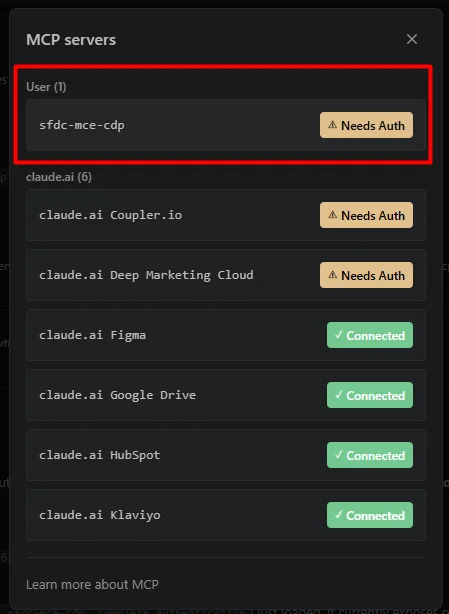
- Click on Needs Auth, and then click on Authenticate.
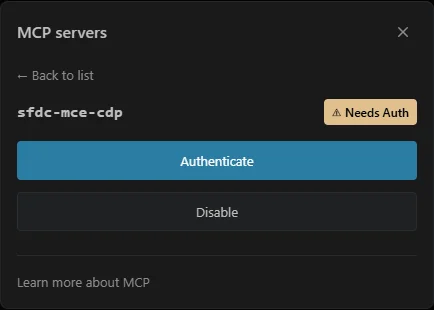
Upon clicking on Authenticate, a dialogue box like the below would be opened. Click Copy, and the URL would be copied to clipboard.
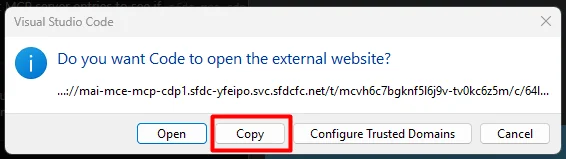
Now paste this URL in the same browser in a new tab through which you have logged into MCE and hit Enter and it will show an Authentication Successful message.
A quick sanity check: Ask Claude Code to list the data extensions in a folder you know contains a small number. If it returns the right names, all good. If you get a 401, recheck the client secret. A 403 means your scopes are too narrow for the request. Add what’s needed. A 500 typically means the tenant ID or client ID in the URL is wrong.
How we tested the MCP server in Marketing Cloud Engagement
Creation of a Data Extension
We requested the creation of a Data Extension using natural language, as shown below.
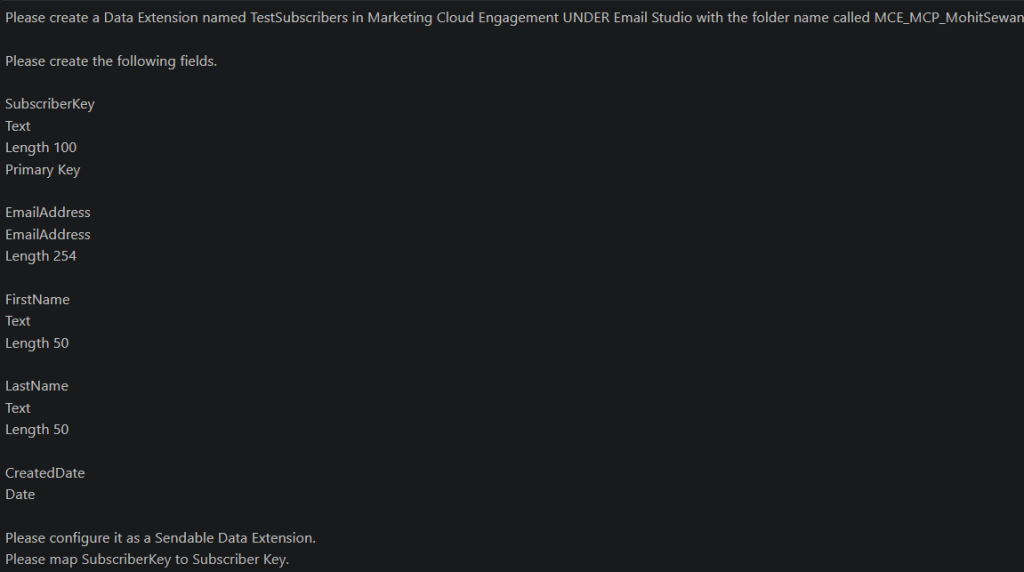
However, we faced the below blocker.

The MCP server in Marketing Cloud Engagement cannot create folders at the moment. But the Data Extension was created successfully.
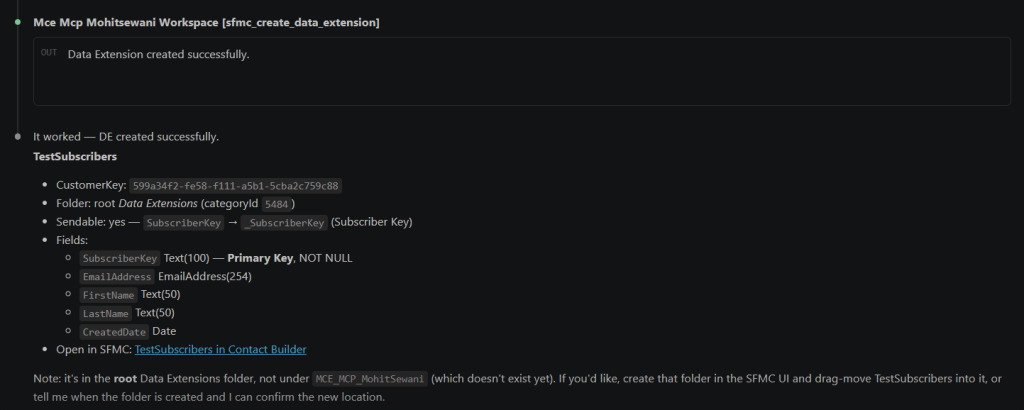
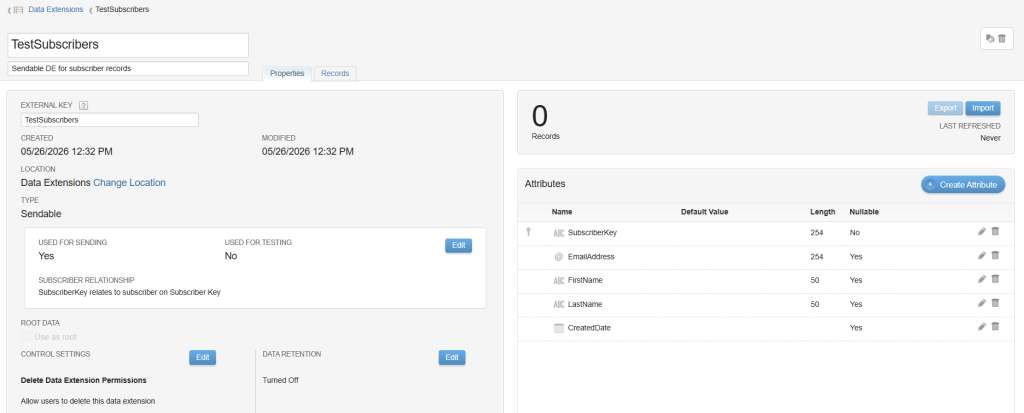
Opening the link confirmed that the Data Extension had been created successfully.
A full account audit in a single session
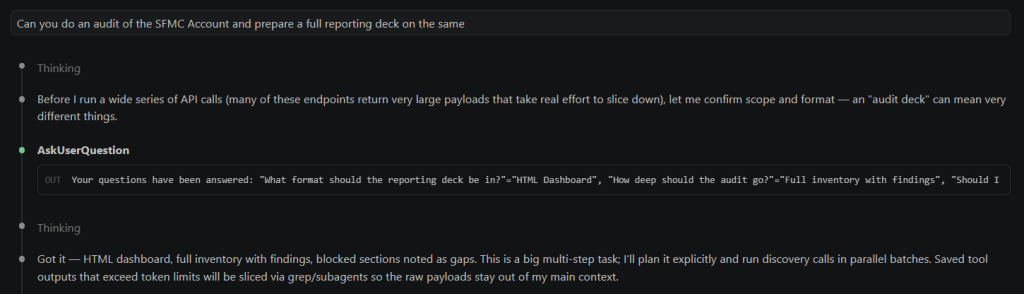
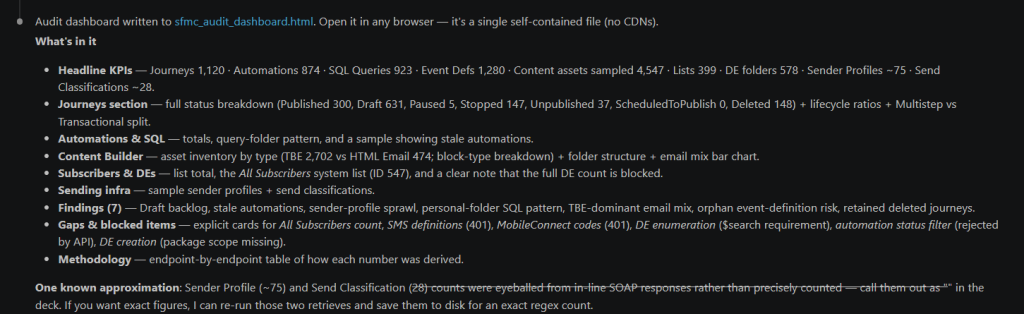
To put the MCP server through a real-world workload, we pointed Claude Code at a Salesforce Marketing Cloud business unit and asked it to generate a complete account audit. The result was seven prioritized findings, ranked High, Medium, Low, or Risk, each paired with specific recommendations:
- Draft journey backlog
- Stale automations requiring decommissioning
- Sender profile cleanup
- Personal-folder usage across query activities
- Email template strategy signals
- Orphaned event definitions, and
- Deleted-journey retention patterns
From the initial prompt to the rendered dashboard, the entire process took a single working session.
Check out the following image grab where you can see our prompt.
It successfully created the dashboard and provided a HTML file to view the dashboard.
Note: Make sure to allow the scope of all the modules/builders in the package created in Marketing Cloud Engagement for which you want the audit to get done.
Below are the screenshots of all the dashboards created.
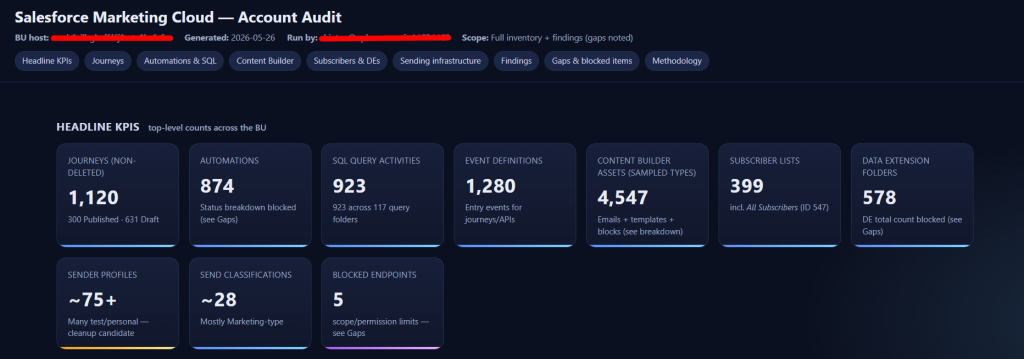
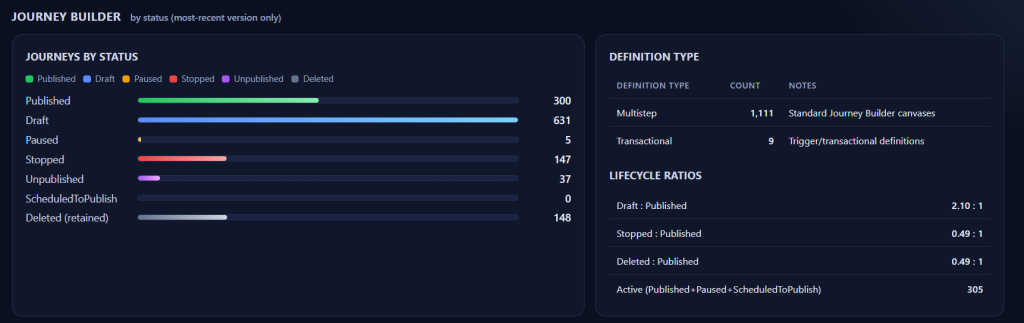
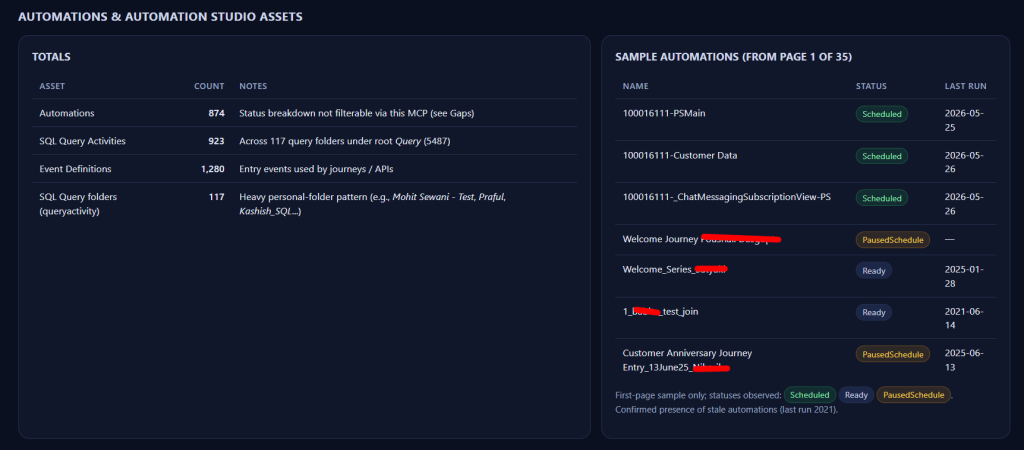
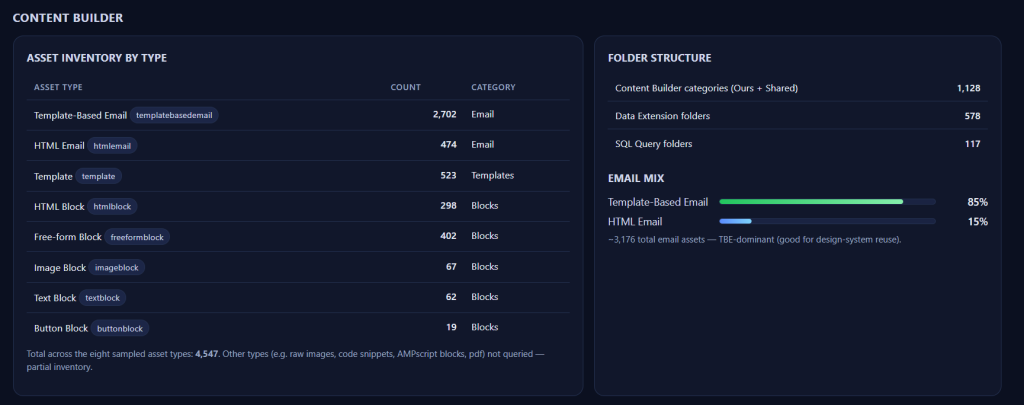
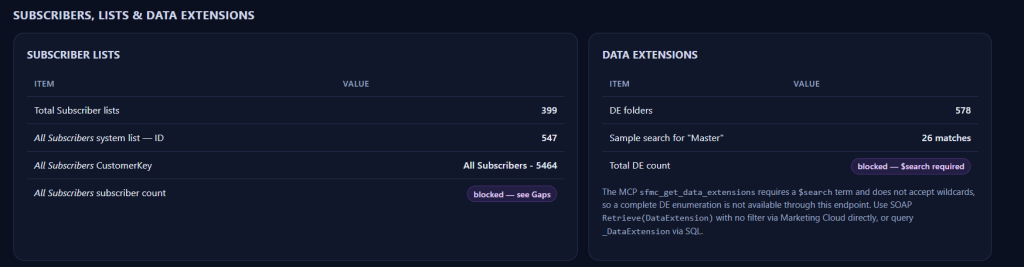
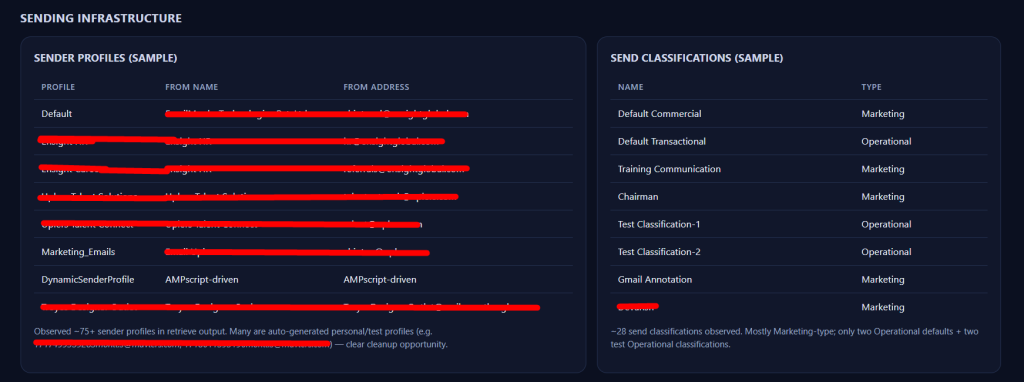
Work that was previously too expensive or time-consuming to perform regularly can now become part of a standard operational cadence. Here’s how work has changed before and after MCP.
| Before MCP server | With the MCP server | |
| Journey audits | Manual filtering and exporting in Journey Builder, one status at a time | Queried conversationally in a single pass |
| Automation review | Clicking through dozens of paginated Automation Studio | Retrieved and analyzed automatically |
| SQL query activities | Navigating 100+ folders manually to inspect and count activities | Indexed and summarized programmatically |
| Content inventory | No single rolled-up view across Content Builder assets | Unified inventory generated automatically |
| Sender profile review | Opened and inspected individually | Cross-referenced instantly |
| Data analysis | Spreadsheet work, manual calculations, and pattern spotting | Structured findings generated automatically |
| Time required | Typically 3–5 days of senior consultant effort | Completed in a single working session |
| Audit cadence | Infrequent due to cost and effort | Practical to run monthly or quarterly |
Things to keep in mind when working with MCP servers in Marketing Cloud Engagement
A lot of the early commentary describes this as an “AI operator for Marketing Cloud,” but that’s a bit of an oversell. Marketing Cloud Engagement has an unforgiving data model. A bad SQL query against a multi-million-row data extension or republishing a journey at the wrong time can create production issues with potential customer impact. Salesforce recommends a few things:
- Always have the assistant preview its actions before execution. Ask what it plans to change, how many records will be impacted, and to display any SQL it intends to run. Keep human approval in the loop for anything production-sensitive, including journey updates, automation edits, data extension writes, or deletions.
- Be strict about permission scopes, especially in client environments. Agencies and consultants should treat least-privilege access as a baseline requirement, not a best practice. Start with read-only access and grant write permissions only when there is a documented operational need.
- Monitor API consumption closely. Every MCP-driven interaction counts against your API allocation, and exploratory sessions can generate far more calls than expected. If your account is already operating near its API limits, usage tracking becomes important quickly.
Getting started with Salesforce Marketing Cloud MCP servers
The biggest near-term advantage is in technical workflows. These include writing and debugging SQL for data extensions, building schema-aware queries, auditing content at scale, running find-and-replace operations, or analyzing engagement data across multiple journeys. The value comes from its ability to inspect schemas and pull together data that teams would otherwise have to assemble manually.
The idea of marketers running campaigns entirely through natural language is still further away than many demos imply. Right now, the MCP server is best viewed as a force multiplier for engineers, architects, and operations teams who already understand Marketing Cloud deeply.