Lifecycle marketing
 Customer data management
 Email campaign production
 Search marketing
 CMS development
 Who we are
 How we work
 Case studies
 Testimonials
 Salesforce Marketing Cloud
 Braze
Braze HubSpot
 Marketo
 Pardot
 DataBricks
 Snowflake
 HighTouch
 RudderStack
 Segment by Twilio
 Videos
A lead clicks “book a demo” and vanishes into the void.
Sound familiar?
Meetings are more than calendar ticks. They are friction points in the buyer journey.
A poorly designed booking flow lengthens time-to-contact, wastes rep capacity, and turns intent into churn.
You need meetings that convert, not just fill a calendar.
HubSpot Meeting Scheduler is not a mere widget.
If used well, it’s a revenue amplifier. You get faster contact, higher show-rates, and predictable handoffs.
If used poorly, it’s all noise. And noise kills momentum.
This article maps the practical build: strategy, setup, routing, automation, measurement, and scale.
No platitudes. Just decisions that move deals.
Let’s cut to the chase.
What is HubSpot Meeting Scheduler, and who should use it
At its core, HubSpot’s scheduler is native calendar automation. Wmeeting links, team pages, calendar sync, and embedded booking experiences that automatically write back to the CRM.
Primary users:
- SDRs / BDRs for quick qualification
- Account executives for demo and discovery cadences
- Customer success for onboarding and check-ins
- Support triage for urgent tickets
- Marketing-driven demo teams for demand-gen → demo handoff
When to keep it native vs using Calendly or Chili Piper
Choose native if you want a tight CRM association, HubSpot workflow hooks, and simpler governance.
Choose third-party when you need ultra-advanced routing, high-touch enterprise routing, or specialized CTAs (but expect integration work).
Now, let’s see what the HubSpot meeting scheduler truly brings to the table.
Core features, what the scheduler actually does
Here are the key features of the HubSpot meeting scheduler.
- Meeting links & team pages (individual, round-robin, pooled seats).
- Google Calendar + Office 365 sync.
- Embed options: inline, popover, standalone landing page.
- Availability windows, buffers, lead-time minima.
- Timezone localization and display.
- HubSpot form capture and pre-meeting questionnaires.
- Auto-associate meetings to contacts/companies and create timeline events.
- Custom confirmations, reschedule & cancellation flows.
- Zapier, webhooks, and workflow triggers for downstream automation.
In short, it’s a booking system that lives inside your lifecycle engine, not a siloed scheduling app.
Now, let’s see how you can plan the whole process.
Plan the meeting strategy, objectives, audience, and funnel placement
Here is a table to help you map meeting types to funnel stages.
| Sales Stage | Approach & Ownership |
| Discovery | Short, qualification-first, SDR-led |
| Product Demo | Solution-focused, AE-led, deeper preparation |
| Onboarding | Success-led, setup-first |
| Renewal / Expansion | Account-led, senior rep or Customer Success |
And here is what you need to do after that.
- Define the objective for each link. Qualify, demo, onboard, and escalate. Every meeting must have a single measurable outcome.
- Choose attendees and duration accordingly. 15 mins for discovery. 30 to 45 minutes for product demos. 60+ minutes for onboarding. Respect rep capacity and cognitive load.
- Capacity planning should be a priority. Set seat limits per rep, minimum notice windows, and blackout periods. Decide early whether to permit same-day booking.
- Pre-qualification requirements. What do you need before the call? Industry, ARR, use case, key contacts. Capture only essentials, reduce friction, and add signal.
So, how do you set things up in HubSpot? Let’s dig into that.
Set up a walkthrough, step-by-step, in HubSpot
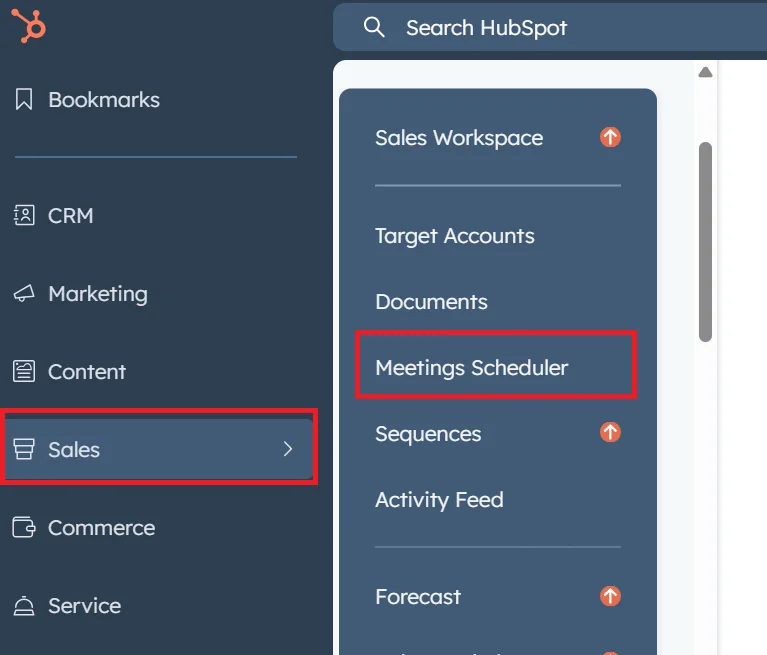
1. Connect calendars
- Google Workspace: OAuth consent and calendar sharing required.
- Office 365: admin consent and correct mailbox permissions.
Test token refresh and ensure the connected account has edit rights. - Go to Sales → Meeting Scheduler
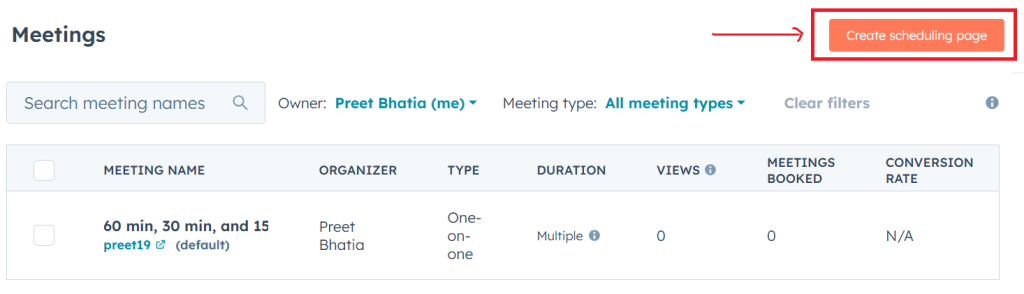
2. Create meeting link
- Naming convention: team_affiliate_purpose (e.g., SDR_USA_discovery_15).
- Set duration, buffer before/after, min lead time, and available days.
3. Configure availability
- Use the default calendar availability for basic use.
- For more control, set custom weekly windows or per-link rules.
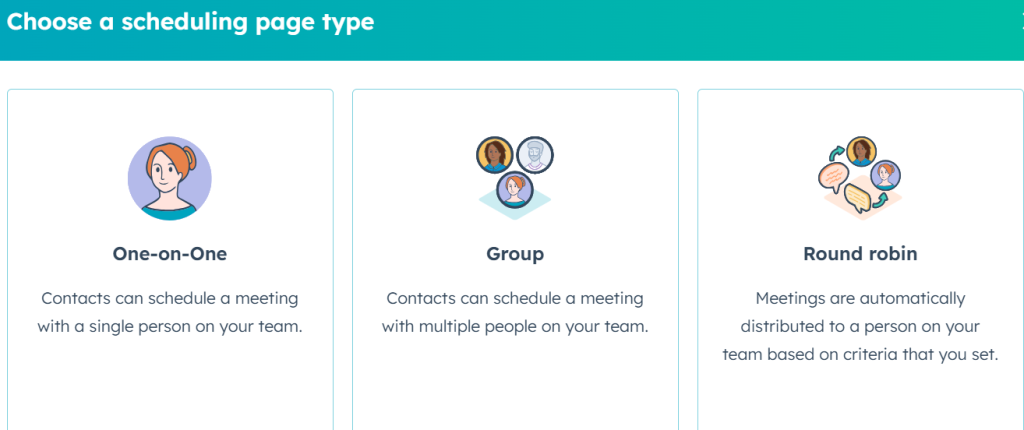
4. Team scheduling
- Round-robin: simple fairness.
- Pooled seats: useful for support triage.
- Weighted routing: heavier load to senior reps if desired.
5. Booking form integration
- Attach HubSpot forms or meeting questions; map answers to contact/company properties.
- Avoid overlong forms, ask only what matters.
6. Embed & share
- Inline on pricing pages, popovers on high-intent CTAs, dedicated meeting pages for campaigns.
- Best practice: CTA copy should be explicit (“Book a 20-minute demo”), and UTM-tagged links should be used.
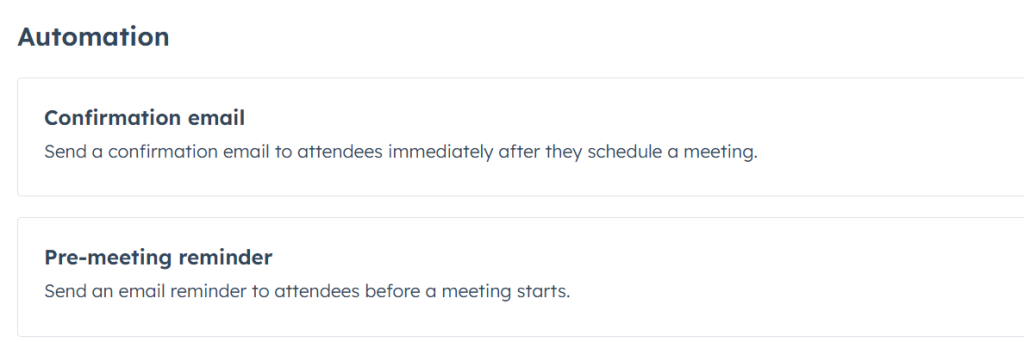
7. Test & seed accounts
- Verify calendar invites, conference links, time zone behavior, and confirmation emails.
- Build automations for simple tasks like confirmation emails, reminder emails, etc.
Now, let’s see what advanced features you have at your fingertips.
Advanced routing & queuing, fairness, priority, escalation
Here are a few advanced strategies in routing and queuing meetings with the HubSpot meeting scheduler.
1. Round-robin strategies
- Even distribution for equal-capacity teams.
- Weighted distribution when senior reps handle high-value leads.
2. Priority rules
- Route by lead score, account tier, region, or custom properties (e.g., ARR > X to senior AE).
3. Queues & overflow
- When seats are full: show waitlist, suggest alternate times, or route to SDR pool.
- Consider “overflow to manager” for VIPs.
4. SLA enforcement
- Auto-escalate to the manager if the meeting is unassigned for X minutes.
- Use escalation to preserve response SLAs for enterprise prospects.
5. Use-cases
- VIP routing with mandatory confirmation phone number.
- Urgent support triage via pooled seats and real-time assignments.
Now, let’s see what the integration of the meeting scheduler and HubSpot workflow has in store for you.
Integrating with HubSpot workflows, automation patterns
On booking → trigger workflows that:
- Create a task for the assignee (prep instructions included).
- Set lifecycle stage or increment lead score.
- Send pre-meeting nurture (video, one-pager, customs).
- Generate conferencing URL (Zoom/Meet) and persist it to the meeting record.
Post-meeting flows:
- If outcome = “no-show” → SMS + email + rep alert.
- If outcome = “interested” → create deal, assign AE, start opportunity nurture.
- Branch on outcome property: won → onboarding; not yet → nurture stream.
Practical tip: standardize the properties for meeting purpose and meeting outcome to drive consistent automation and analytics.
Pre-meeting experience, reduce no-shows, and increase preparedness
- Confirmation email with a clear agenda and a single CTA to reschedule.
- Calendar attachment (.ics) and reliable conferencing link.
- Pre-meeting content: 1-min product video, discovery questionnaire mapped to contact props.
- Reminder cadence: 24 hours, 1 hour, and optional SMS (only if consented).
- Analytics: track opens and clicks on pre-meeting content to predict show probability and prompt additional nudges.
Accessibility and timezone clarity must be non-negotiable.
Conferencing integration & hygiene
- Connect Zoom, Meet, or Teams natively and store the link on the meeting event.
- Use waiting rooms, passcodes, and domain allowlists for enterprise demos.
- Recording governance: get consent, tag recordings, and manage storage/access in CRM.
- Keep the conferencing link as the single source of truth, and avoid multiple links or scattered notes.
Now, if you want to use the HubSpot meeting scheduler on your website, here is how to do it.
Embedding scheduler into site & campaigns
Where to place CTAs?
- Pricing, contact, high-intent landing pages, case studies.
Modal vs inline:
- Modals convert faster; inline is better when context must remain visible.
Microcopy tests:
- “Book 20 minutes” vs “Get a personalized walkthrough”, test for intent match.
Progressive profiling popovers reduce form fatigue: capture the bare minimum, then enrich later via the meeting questions.
Track embedded clicks via UTMs and HubSpot events to source meetings to campaigns.
Key measurement metrics that matter
Here are the core KPIs you need to keep a tab on:
- Booking rate (visitors → booked)
- Show rate (booked → attended)
- Time-to-first-meeting (lead creation → meeting)
- Post-meeting conversion (opportunity rate, win rate)
- Rep no-show/reschedule rates
And here are operational metrics that can create a difference:
- Average response time to booking
- Seat utilization & saturation
- Cancellation and reschedule patterns
Lastly, here are the reporting recipes:
- Dashboards: meetings by rep, meetings by source, meeting → deal funnel.
- Cohort analysis: meeting-to-deal velocity and revenue per meeting.
- Experiment: A/B test CTA placement, reminder cadence, and pre-meeting content.
But that’s not it. You also need to abide by the privacy policies.
Compliance, privacy & data governance
Here are a few data policies you should comply with:
- Treat calendar invites carefully: implied consent for invites does not equal marketing consent for SMS.
- GDPR/CCPA: limit storing sensitive questionnaire answers; document lawful basis for retention.
- Retention & access: set explicit retention periods for recordings and notes.
- Audit trails: log workflow changes and meeting-property edits for traceability.
Accessibility & inclusive scheduling
Here are a few accessibility tips to make your meeting schedules more inclusive.
- Always display local time and timezone.
- Offer localized meeting pages and confirmation language.
- Provide multiple length options and accessible pre-meeting materials (captions, large fonts, alt text).
- Avoid assumptions about contact method; offer email, phone, or video.
Troubleshooting & practical fixes
Here are a few common problems and quick checks:
- Calendar connection fails → Refresh OAuth, reauthorize, check calendar permissions.
- Double bookings → Verify host calendars show busy/free correctly and buffer settings.
- Timezone mismatch → Ensure user and host timezones align; account for DST.
- Missing meeting props → Check form-to-property mapping and API timing.
- No-show spikes → Verify reminders, page UX, and calendar invitation integrity.
Admin scripts: token refresh checklist, seed-account tests, and a prioritized debug runbook make fixes fast.
Now, if you want to scale the meeting schedule, let’s see how to do it.
Scaling meetings, governance, templates & delegation
- Maintain a template library (discovery, demo, onboarding, escalation).
- Standardize naming taxonomy for links and teams.
- Set delegation: substitutes, backfills, manager approvals.
- Enable reps with playbooks for pre-call qualification and note-capture.
- Quarterly housekeeping: retire stale links, audit availability windows, and holiday blocks.
API & developer use cases
Use HubSpot APIs to:
- Create meetings programmatically for SaaS flows.
- Write the meeting outcome back to CRM and trigger automations.
- Push minutes/transcripts to enrichment pipelines.
- Fire webhooks into Slack for real-time alerts.
Developer patterns: auto-create deals when meeting_outcome = qualified; rotate API tokens and respect rate limits.
Need an advanced implementation plan? We have got your back.
90-day playbook to build a high-performing scheduling program
- Week 1–2: Discovery, map meeting types, capacity, key properties.
- Week 3–4: Initial setup, calendar connects, naming conventions, test embeds.
- Week 5–8: Automation, pre-meeting nurture, no-show flows, outcome-driven branching.
- Week 9–12: Pilot, run a subset of reps, iterate, A/B test CTA and reminder cadence.
- Week 13–90: Scale, roll out, quarterly audits, refine predictive signals, and routing.
Your deliverables should include: meeting taxonomy, workflow library, test matrix, and KPI dashboard.
Wrapping up
That brings us to the business end of this article, where it’s fair to say that you need to treat meetings as a disciplined revenue lever
Meetings are not trophies on a rep’s calendar. They are engineered touchpoints that accelerate decisions.
Design meetings with purpose: clear objectives, predictable routing, automated prep and follow-up, and measurement that ties back to the pipeline.
Start small. Map one high-value use case, implement a meeting flow, and run a holdout. If the signal improves, scale it, govern it, and bake it into your lifecycle engine.
Want help? We’ll map your meeting taxonomy, build workflows, and run a pilot to prove the show rate and conversion lift.
Shoot us an email or simply fill out the form. We’ll take it from there.