Lifecycle marketing
 Customer data management
 Email campaign production
 Search marketing
 CMS development
 Who we are
 How we work
 Case studies
 Testimonials
 Salesforce Marketing Cloud
 Braze
Braze HubSpot
 Marketo
 Pardot
 DataBricks
 Snowflake
 HighTouch
 RudderStack
 Segment by Twilio
 Videos

Ladies & gentlemen, on today’s episode of Mavlers’ CRM hauls, allow me to start with a confession…
I remember a point in my career in peak CRM chaos season, when I’d open a HubSpot contact record and genuinely consider taking a walk and not a short one.
One of those long, contemplative New York walks where you question your life choices, reconsider your job, and maybe Google “cheap cabin rentals upstate.”
Because nothing crushes a RevOps professional’s soul quite like scrolling through pages of custom properties with names like “Lead Source (NEW final v2)”, “Segment Bucket Old”, “Segment Bucket New”, “Segment Bucket Use This One”, and the classic: “DO NOT USE.”
Every CRM tells the story of the company that built it.
And most CRMs read like multiverse fan fiction replete with ten authors, conflicting timelines, and no editor in sight.
Yet somehow, somewhere, we expect our teams to make sense of all this and produce insights, strategy, forecasts, revenue plans, ICP maps, and next best actions.
That, my dear reader, is what we call delusion with a dash of optimism.
But then HubSpot quietly dropped something into the Breeze AI platform.
Something that didn’t feel like hype. Something that wasn’t trying to be your personal assistant, your therapist, or a half-baked copilot that writes emails you’d never send.
A tool that actually understands CRM pains.
They called it Data Agent.
And if you’ve ever felt personally victimized by your own data, this might just become your new favorite colleague.
Let’s get one thing straight, HubSpot didn’t build Data Agent for beginners
Nope, nada!
They built it for the people who know the difference between a bad property naming convention and an existential crisis.
For the HubSpot Admin who has tried to “clean up the backend” for three consecutive quarters and failed because someone keeps creating new properties like they’re rationing coupons.
They built it for the marketer who has 15 enrichment tools plugged in but still manually Googles “company size” at 11:57 PM before a sales meeting.
They built it for the sales rep who does not and WILL not scroll through 17 years of timeline history before calling a prospect.
And they built it for the RevOps pro who’s tired of being the human middleware between data, meaning & action.
Data Agent is not cute, fluffy, or an AI cosplay.
It’s the first practical, let-me-help-you-before-you-scream tool HubSpot has released in years.
Unpacking the 3 big superpowers of Data Agent
Data Agent is part of HubSpot’s AI Breeze Platform and includes three core components: Smart Properties, Smart Actions (AI Workflow Actions) & Smart Reporting (Smart Columns).
Let’s delve deeper into these like adults with deadlines.
1. Smart Properties
Remember the feeling when you walked into a library where the shelves ran floor to ceiling, but the one book you needed was filed under “miscellaneous.”
That’s the modern CRM experience.
Smart Properties fixes that by letting you ask HubSpot a specific question, which creates a property that auto-fills the answer.
“What’s this company’s IPO date?”
Boom, Smart Property. HubSpot fetches it from public web data.
“How big is this company?”
Smart Property. No more bouncing to LinkedIn or BuiltWith or three tabs of Google.
“Does this contact seem like a decision-maker based on their email history?”
Smart Property. HubSpot reads the call notes, emails, and activity logs and surfaces the answer.
Here’s the difference between Smart Properties and the chaos we used to put up with:
Old properties store data, while Smart Properties explain data.
And in HubSpot-land, that is a revolution.
However, a note of caution is due here, for Contacts, Smart Properties currently analyze only internal CRM activity (like properties, call/meeting recording, etc) for finding contact-related information.
The facility to search web resources for contact information is currently not offered.
Wondering how to go about it? Well, there are two ways to create Smart Properties;
(i) While creating a custom property, you can mark the property as a Smart Property
(ii) Go to the Data Agent interface (under Data Management) and create a new property from there.
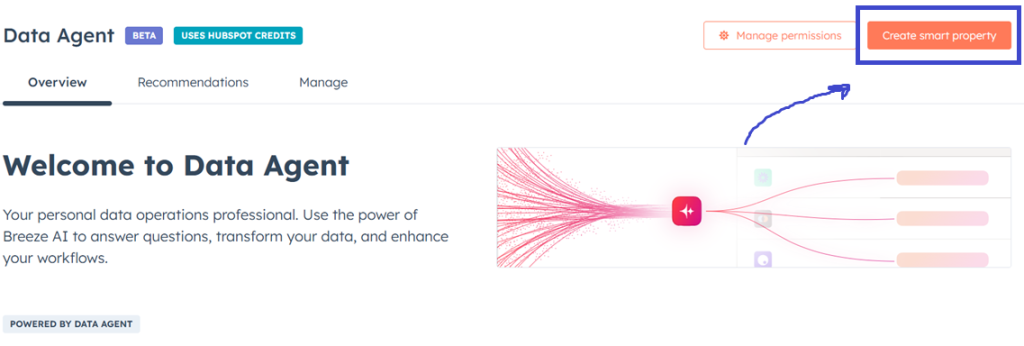
Instead of creating your own Smart properties from scratch, you can take a look at the properties templates offered by default and start from there.
Now, let’s get down to the ways by which you can enrich Smart Properties.
(i) Manual enrichment
You can go to the contact/company record, click on actions, and select “Fill Smart Properties.”
This way, you can enrich the properties manually for any record.
(ii) Automatic enrichment for a specific record
You can use smart actions in Workflows to enrich properties for a specific WF-enrolled contact.
(iii) Automatic enrichment for the global record
If you want to enrich properties for all records in CRM, you can do so by selecting the smart property prompt at the backend.
2. Smart Actions
If Smart Properties are the brains, Smart Actions are the muscle.
I had a workflow once, 42 steps long, designed purely to summarize a contact’s history into a note so a BDR wouldn’t have to scroll. It was fragile, clunky, and required a petri dish of if/then branches.
Data Agent blows that to dust.
Once the Data Agent is turned active, you can locate the AI tab in the Action interface.
Now, inside any workflow, you get an AI tab with actions that genuinely feel like magic, including:
i) Custom Prompt
This is where you can get creative.
You can tell HubSpot, “Look at this contact’s behavior and create three talking points a BDR should use in the next call.” Or, something like, “Based on this deal’s history, write a renewal-risk score and explain why.”
HubSpot does it in seconds and at scale.
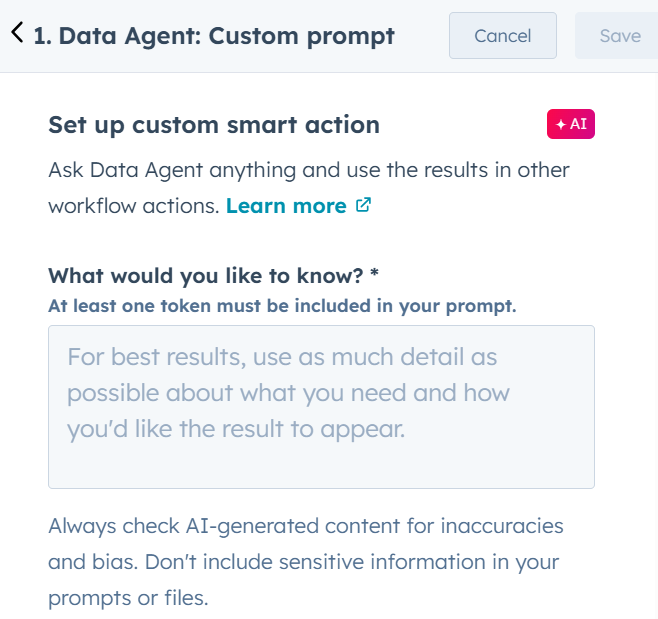
ii) Enrich Smart Properties automatically
The action will enable you to enrich the selected smart properties for the enrolled contact.
This will save a lot of time by avoiding the need to perform actions for individual contacts.
iii) Summarize record
HubSpot reads the entire CRM timeline, calls, emails, notes, and meetings, and produces a digest that a rep can read in 10 seconds. Your BDRs will think you hired help.
They’ll thank you, and they’ll close faster.
iv) Get Company ICP and news
All you need to do is share the company domain with an AI prompt, and you’ll get the full set of ICP and news details about the company in a fraction of a second!
Overall, the workflow actions will help you automate the use of the data agent so that you don’t have to waste time doing it manually.
3. Smart Reporting
Reporting is where even the bravest RevOps souls begin questioning their career choices.
Because data isn’t the problem, interpreting it is.
Hundreds of reports, thousands of data points, and executives asking, “Can we show this by industry, but also by rep, but also by quarter, and also segmented by churn risk?”
Smart Reporting introduces Smart Columns, which means that you tell HubSpot what trend or pattern you want. It analyses thousands of records and adds a new column based on the insight.
For example, I recently ran, “Read all Deal notes and list the top three competitors mentioned.”
HubSpot created a real dataset column with exactly that insight, no exporting, no manual scanning, no guesswork.
Then we built a report titled “Win Rate by Competitor Mentioned.”
Suddenly, the team discovered something wild, a competitor we thought we were losing to was actually a non-threat.
Another competitor, barely discussed internally, was quietly eating our lunch.
That’s the kind of clarity that changes roadmaps, budgets, hiring plans, and strategy.
Smart Reporting doesn’t give you data; instead, it gives you meaning.
How to activate Data Agent
Here’s how to set the Data Agent in action.
- Open HubSpot
2. Click the Breeze tab in the main navigation.
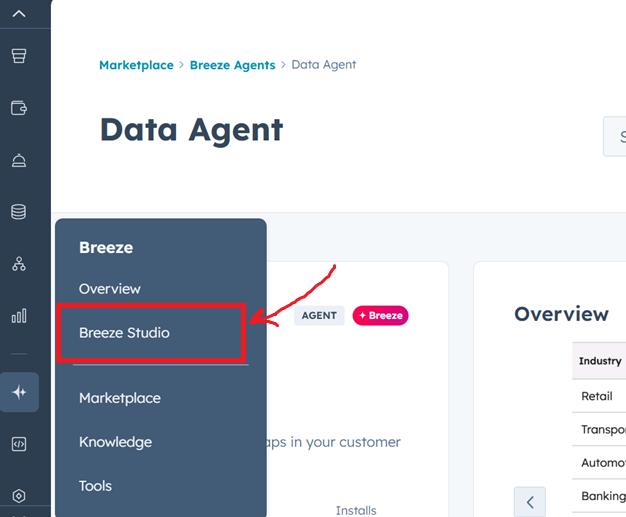
3. Head into Breeze Studio
4. Install Data Agent from the marketplace.
5. It’ll appear under Data Management.
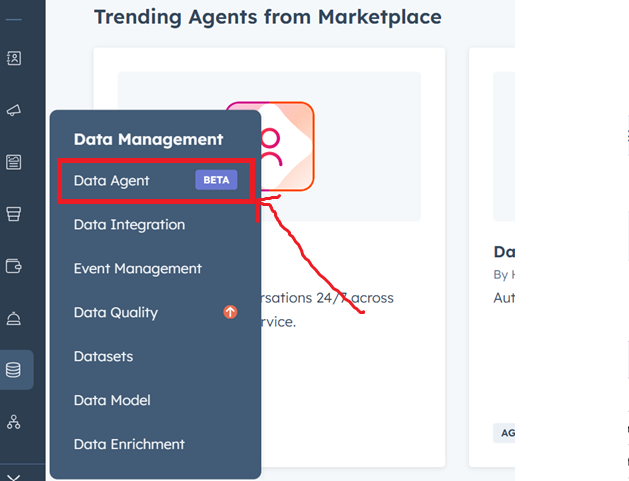
No code, setup marathon, or crying into your keyboard.
Just install and go.
The road ahead
On that note, if you are considering partnering with Mavlers for your HubSpot needs, we recommend reading this next ~ What makes Mavlers a good choice for your HubSpot needs?