Lifecycle marketing
 Customer data management
 Email campaign production
 Search marketing
 CMS development
 Who we are
 How we work
 Case studies
 Testimonials
 Salesforce Marketing Cloud
 Braze
Braze HubSpot
 Marketo
 Pardot
 DataBricks
 Snowflake
 HighTouch
 RudderStack
 Segment by Twilio
 Videos
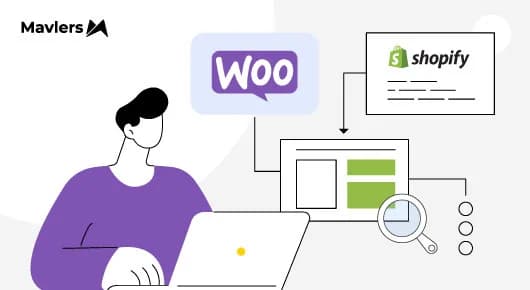
A WooCommerce to Shopify migration is only worth all the hard work when a brand carries these crucial things to the new platform: customer data, inventory, order history, and the one most teams forget, search rankings.
Most migration checklists stop at the data transfer. Export products, import customers, move images across. Check, check, check. But the moment your new Shopify store goes live, something less visible is already at risk.
When you migrate from WooCommerce to Shopify, you are not just upgrading your backend. You are rebuilding your site’s Search Identity, the complete set of signals that search crawlers and AI models use to recognize, trust, and rank your site.
URL paths, robots.txt rules, schema markup, and internal link hierarchies together work more than your store’s technical configurations. They are also how Google knows you. They are the accumulated proof of your site’s authority built over the years.
And almost all of it is tied to URL paths that won’t exist anymore post-migration.
Without proper redirects, Google’s crawlers and AI bots have no way to connect the old Search Identity to the new one. They hit a dead end. And the link equity, ranking power, and trust signals attached to those old URLs simply stop transferring forward.
That’s why a WooCommerce to Shopify migration is only truly successful when you carry more than just your products and customer data, you carry your search rankings with you.
Today’s blog walks you through SEO risks inside a WooCommerce to Shopify migration, and provides a technical roadmap to migrate WooCommerce to Shopify without losing SEO.
Meanwhile, read our latest: The Complete Shopify SEO Migration Playbook. Lock in the fundamentals, then come back here.
The SEO Challenges and their expert fixes when you migrate from WooCommerce to Shopify
To migrate from WooCommerce to Shopify without losing SEO, you must be prepared for these eight high-stakes risks with razor-sharp accuracy.
1. The URL structure gap & link equity loss
The challenge:
WooCommerce offers infinite customization for permalinks.
As in:
example.com/product-name.html
Shopify uses a rigid, subfolder-based structure.
As in:
example.com/products/product-name
If you migrate content without explicitly telling Google where it went, years of accumulated “link equity”, the ranking power passed from other sites to yours, will disappear in a flash. That’s because the search engines may fail to associate your new Shopify URLs with the rankings your old WooCommerce pages held.
Expert solution:
- To fix this, you need to map every URL to its new Shopify equivalent. Then you need to set up 301 redirects for each one.
- A reminder here is not to redirect everything to your homepage. Google can flag this as a 404 error, which can hurt your search rankings.
- Create a Page Template Content Mapping document. Map old product URLs to new product URLs, and old categories to new collections. Shopify allows you to import these redirects in bulk under the Navigation settings.
2. The “Deleting content too soon” mistake
The challenge:
Many store owners see migration as an opportunity to “prune” their site. They go on deleting hundreds of old blog posts or discontinued product pages. However, deleting indexed content during a WooCommerce to Shopify migration confuses search crawlers and causes a sudden dip in site authority.
Expert solution:
- Migrate everything first, prune later- is our mantra.
- You don’t want your site’s structural inconsistencies to extend the indexing confusion for months. So, do everything to retain a consistent site structure during the migration.
- Once the new Shopify site has been crawled, indexed, and stabilized which is usually 2-3 months post-launch, you can begin a data-led content pruning strategy.
- Must you retire pages? Then, redirect them to the most relevant live alternative to preserve backlink value.
3. Broken internal link networks & UX friction
The challenge:
Your WooCommerce site is made up of a web of internal links that connect navigation menus, breadcrumbs, category pages, and years of blog content with each other. Apart from guiding users through your site, these links also take search crawlers through your content hierarchy.
The problem?
After the WooCommerce to Shopify migration, most of those links still point to the old WooCommerce URLs that don’t exist anymore.
These become broken internal links the moment your new store goes live. From Google’s perspective, broken internal links represent crawl dead ends. In other words, poor site health. From a user’s pov, clicking a link that leads to a 404 error undermines trust and crashes conversions.
Expert solution:
- Before migration, document your full internal link structure. Screaming Frog or Ahrefs are some really apt tool options for pulling it off. Use them optimally to clearly see which pages link to which, and identify your most heavily linked-to pages.
- Perform a post-migration internal link audit.
- Pay particular attention to the blog post body content. This is where broken internal links most commonly accumulate, because blog posts frequently link to products, collections, and other posts using absolute WooCommerce URLs that no longer resolve. Update every broken internal link to its correct Shopify equivalent.
- You can often use Shopify apps or “Find and Replace” tools within your database to update internal links to the new Shopify structure and retain a seamless flow of link juice throughout the site.
- Rebuild your navigation hierarchy deliberately. Do not accept the default structure your Shopify theme imposes. Ensure your highest-priority collection and product pages receive strong internal link support from your homepage, main navigation, and relevant blog content, mirroring the authority distribution your WooCommerce site has established.
- Keyword cannibalization & diluted rankings
The challenge:
Keyword cannibalization happens when multiple pages on the same site compete for the same search query. They are enough to create conflict for search engines which when encountering such pages, splits the authority between them rather than consolidating it around a single, strong page.
During a WooCommerce to Shopify migration, poor content restructuring may cause you to end up with multiple pages targeting the same keywords. Say, your new Shopify collections and old blog posts are competing for the same search term. In such a case, search engines become “confused,” and neither page ranks well.
Expert solution:
- Developing a Keyword Mapping Document before migration is your safeguard against cannibalization.
- In this document, list primary and secondary keywords that no other page on the site targets.
- Where you see overlap exists, resolve it before launch-through canonical tags, content differentiation, or consolidation.
- Ensure that your URL slugs, meta descriptions, and H1 tags are uniquely optimized for their specific target. This makes your content hierarchy legible to search engines and AI models.
- After migration, audit your collection and product page structure specifically for keyword overlap. Google Search Console is your ally here. It will help you spot multiple pages that are ranking for the same query.
- Where they do, consolidate weaker pages into stronger ones via 301 redirects. Alternatively, differentiate content sufficiently that Google can distinguish distinct search intent between them.
5. Indexing delays & technical roadblocks
The challenge:
Even a perfectly executed migration will experience a period of indexing flux. It takes weeks or even months for Google to fully process the migration. During this time, it’s perfectly fine to see a temporary traffic dip as Google re-evaluates your new structure.
Expert solution:
Proactive technical signaling.
- Sitemaps: Shopify generates a sitemap.xml automatically. Resubmit this to Google Search Console on the launch day to inform Google about the migration. On getting this direct cue, Google can begin recrawling your site under its new structure and accelerate reindexing.
- Robots.txt: Complete a technical audit to ensure your robots.txt isn’t accidentally blocking critical pages. Shopify allows customization of this file to help you prioritize which sections are crawled.
6. International store hurdles
The challenge:
For brands with global stores, an international migration is exponentially riskier. Choosing the wrong domain structure (Subdomains vs. Subdirectories) can force your international rankings to “start from zero.”
Expert Solution:
Prioritize subdirectories for shared authority.
- Domain Structure: Subdirectories like store.com/fr sit under your main domain and inherit its authority. Subdomains don’t get that same treatment; Oftentimes, Google reads them as separate sites entirely. Which means your international rankings would essentially be starting from square one.
- Hreflang Tags: These tags are what tell Google which language version of a page belongs in which country. Most Shopify themes handle this out of the box. But if you’re running a complex multi-store setup, the default implementation may not be enough. In that case, get your developers involved before launch, not after, to avoid duplicate content penalties across regions.
7. Schema markup disruption
The challenge:
If your WooCommerce site had custom schema for reviews and pricing, and your new Shopify theme does not, you will lose your “Rich Snippets” (the stars and prices in search results). This leads to lower Click-Through Rates (CTR).
Expert solution:
Optimize and Validate.
Shopify themes generally provide built-in JSON-LD for products. That said, anything custom, FAQ schema, specialized blog markup, non-standard data types, won’t survive the move on its own. These need to be explicitly rebuilt in Shopify. Once you’ve imported products from WooCommerce to Shopify, run the Google Rich Results Test across your key page types before going live. It’ll tell you immediately whether your structured data is rendering the way it should.
8. Data and tracking gaps
The challenge:
Fail to properly configure your analytics tools during the migration and be prepared to lose the ability to compare pre- and post-migration performance. Without data, you can’t identify which pages are failing.
Expert solution:
Conduct Pre- & Post-Migration Audits.
- Pre-Migration: Benchmark your current site speed, keyword rankings, and organic traffic.
- Post-Migration: Immediately audit the site for 404 errors and tracking tag firing. This allows you to address technical warnings before they turn into long-term ranking losses.
The Mavlers’ SEO checklist for WooCommerce to Shopify migration: URL redirects & SEO infrastructure
Working with an experienced migration agency means the guesswork is already taken out of the equation. There are tested processes in place specifically to bring you impressive results.
At Mavlers, we’ve handled migrations to Shopify from WooCommerce, Magento, and fully custom-built platforms. That experience shaped a migration process built around one priority: keeping SEO impact as close to zero as possible. Every item on the checklist below needs to be signed off, once before the domain switches, and again immediately after it points to Shopify.
To ensure a successful WooCommerce to Shopify migration, every item on this list must be verified before and immediately after the domain points to Shopify.
Dig deeper: Magento to Shopify migration: Common challenges and proven solutions
1. URL mapping & redirects
- Map old WooCommerce URLs to their new Shopify equivalent. Products, collections, blog posts, and filtered navigation pages without exception.
- Set up 301 redirects for all old product and page URLs. Use Shopify’s URL Redirects manager or bulk CSV import.
- Test every redirect for single-hop resolution. Flatten redirect chains before launch.
- Verify that all redirects return a 301 status code.
2. Metadata & on-page SEO
- Go through every key page and manually update meta titles and descriptions. Auto-generated fields are not a substitute.
- Cross-check your H1 tags, URL slugs, and on-page copy against your keyword mapping document.
- Then check schema implementation across your product, collection, and blog post templates. These are the on-page signals Google uses to understand and rank your content.
3. Crawl & indexing configuration
- Pull up your robots.txt and confirm it matches what you had configured pre-migration- a stray disallow rule can quietly block pages you need indexed.
- Get your sitemap.xml submitted to Google Search Console the same day you go live.
- For your most important pages-top collections, flagship products, and key landing pages, use Search Console’s URL Inspection tool to manually request indexing.
- Don’t wait for Google to find them on its own schedule; push them to the front of the queue within the first 48 hours.
4. Analytics & tracking
- Don’t assume GA4 carried over cleanly. Open DebugView and verify that events are actually firing across every page template.
- Set up and verify Facebook Pixel and any other marketing or remarketing pixels.
- Confirm e-commerce event tracking is correctly configured for Shopify’s checkout flow.
- Reverify your Google Search Console property against the new Shopify domain.
5. Post-launch monitoring
- Within 48 hours of launching your site you need to check for any links.
- For the two weeks check the Search Console Coverage report every day to see if there are any new 404 errors.
- Compare your traffic, keyword rankings and Core Web Vitals to what they were before you migrated.
- Make sure the filter and pagination URLs are not being indexed by mistake.
Migrate to Shopify without leaving your rankings behind
Your rankings, backlinks, and Search Identity should all move to your Shopify store with you. As a Shopify Partner, Mavlers does migrations that are technically sound, safe for SEO, and good for long-term growth. Do not lose your authority.
Don’t leave organic authority on the table.
Talk to our migration specialists today. Move to Shopify the right way.
More resources: