
 Lifecycle marketing
 Customer data management
 Email campaign production
 Search marketing
 CMS development
 Who we are
 How we work
 Case studies
 Testimonials
 Salesforce Marketing Cloud
 Braze
Braze HubSpot
 Marketo
 Pardot
 DataBricks
 Snowflake
 HighTouch
 RudderStack
 Segment by Twilio
 Videos

Marketing Cloud Schema Explorer is a free Salesforce Labs app on the AppExchange that helps Salesforce Marketing Cloud Engagement (MCE) teams investigate asset dependencies and monitor daily email operations. In our proof of concept, its Insights and Today workspaces surfaced 42 query activities referencing missing data extensions, two published test journeys, and other issues worth reviewing during account onboarding, periodic audits, and daily stand-ups.
A Marketing Cloud Engagement account can accumulate thousands of data extensions, forgotten automations, and cryptically named assets like Copy_of_Test_DE_v3_FINAL and TEMP_DO_NOT_DELETE. The longer an account runs, the harder it becomes to distinguish active dependencies from assets ready for cleanup.
Then there is the daily operational question: did the email go out?
Answering these questions often means navigating Email Studio, Automation Studio, and Journey Builder separately. We tested Marketing Cloud Schema Explorer to see how its consolidated views could help teams investigate account health and keep track of daily sends.
The proof of concept focused on two workspaces:
- Insights: An account-level asset health check that flags potential issues across data extensions, query activities, and automations.
- Today: A consolidated view of completed sends, upcoming sends, and always-on send triggers.
This walkthrough covers how to connect Schema Explorer to Marketing Cloud Engagement, what our demo account revealed, six ways to use the findings, and the limitations teams should understand before acting on them.
Note: All screenshots in this post use dummy data from a demo account.
How do you connect Marketing Cloud Schema Explorer to MCE?
Enter your tenant subdomain and Business Unit MID, then authenticate with Marketing Cloud. Setup took us under five minutes. The subdomain is the field that trips people up: it is the 28-character mcXXXX… value in your tenant-specific API URLs, not the one in the browser address bar, which only shows your stack (mc.s50.exacttarget.com, for example).
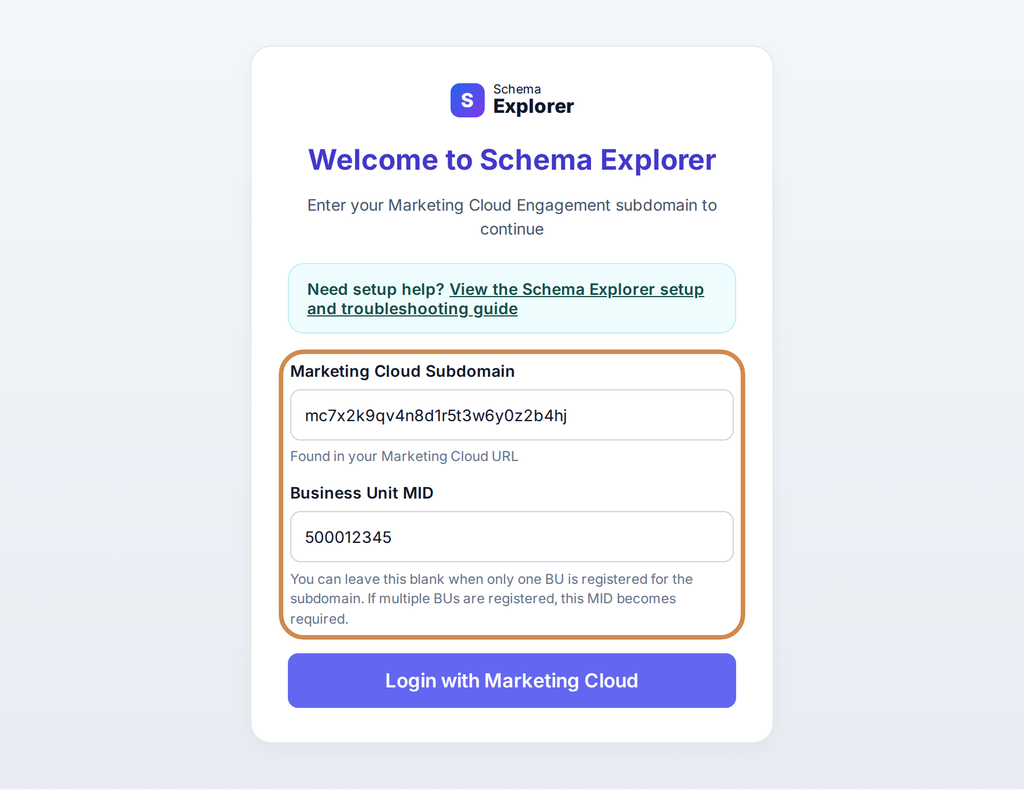
Figure 1: The Schema Explorer login, with the subdomain and MID fields highlighted
To find the subdomain:
- Go to Setup → Apps → Installed Packages.
- Open any package with an API Integration component.
- Copy the part of the Authentication Base URI between https:// and .auth.
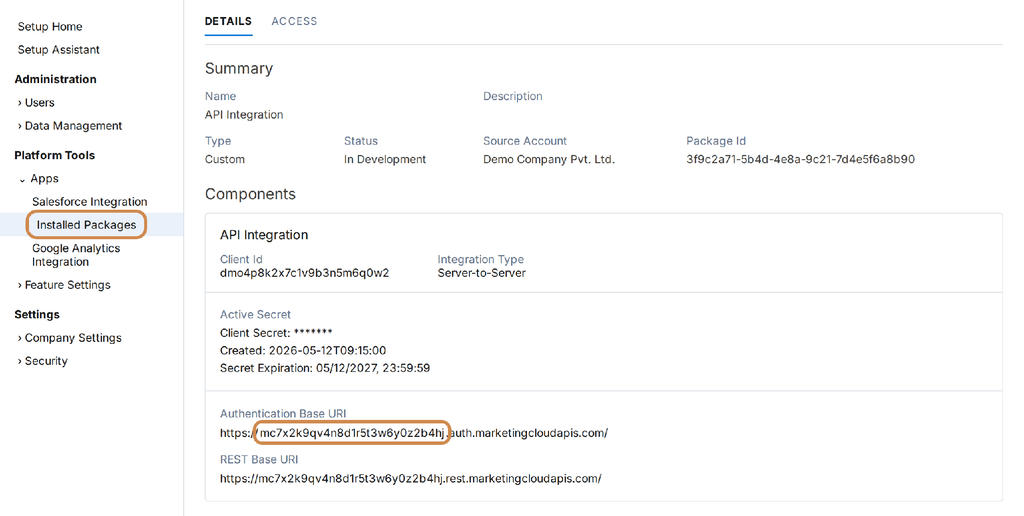
Figure 2: Where to find the subdomain in an Installed Package
Once the first sync completes, Schema Explorer opens five workspaces: Object Explorer, Today, Field Impact, Insights and MC Next Readiness.
This post covers Insights and Today.
Marketing Cloud health check: What did Schema Explorer insights find?

Figure 3: The Insights risk dashboard, with the overall score and Asset Health highlighted
Our demo account returned an overall risk score of 72, driven by Asset Health, with 2,946 flagged items.
The 2,946 items break down across the five rules:
| Health signal | Flagged | Priority |
| Data extensions with no detected usage in journeys, automations, queries, imports or file transfers | 1,184 | High |
| Query activities whose target DE no longer exists | 37 | High |
| Query activities reading from DEs that no longer exist | 42 | High |
| Data extensions not modified in 180+ days | 1,612 | Medium |
| Automations paused for 365+ days | 71 | Medium |
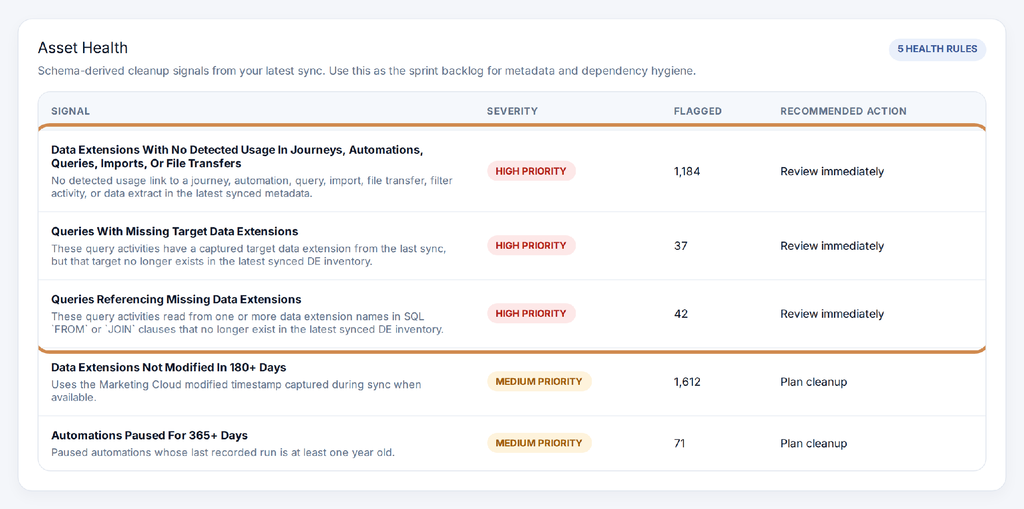
Figure 4: The Asset Health rules, with the three High Priority signals highlighted
A note on the numbers: 2,946 is the total across all five rules, not a count of unique assets. The same data extension can appear in more than one rule (for example, both unused and stale), so the number of individual assets that need attention is lower. Keep this in mind when you size up a cleanup.
Tip: Sync before you review. The score is only as current as your last sync. Schema Explorer doesn’t sync with MCE automatically, so run a manual sync before each review, especially before sharing numbers with a client.
Broken Marketing Cloud queries: The finding that matters most
The 1,184 unused data extensions get the attention, but the 42 queries referencing missing data extensions are the real risk. Schema Explorer identifies these failures by parsing each query’s SQL, extracting FROM and JOIN references (excluding system data views), and comparing them against the live data extension inventory.
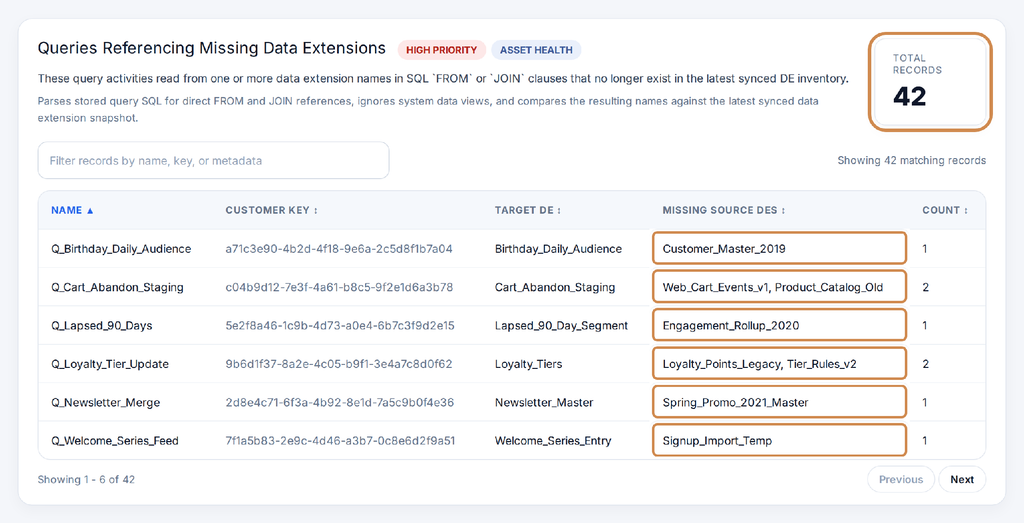
Figure 5: Queries referencing missing data extensions, with the missing sources highlighted
For example, Q_Newsletter_Merge still references Spring_Promo_2021_Master, while Q_Cart_Abandon_Staging joins two data extensions that no longer exist. These queries may have worked until someone renamed or deleted their source data extensions during a cleanup. If they’re part of active automations, those automations fail on every run.
A note on data extension locations
Schema Explorer shows each data extension’s name and its immediate parent folder, but not the full folder path. If your account has deeply nested folders, or the same DE name appears in several places, finding the exact one can take time.
Marketing Cloud send monitoring: Did the email go out today?
The Today workspace answers the 9 a.m. question on one screen instead of three places in Marketing Cloud Engagement.
| Panel | Question it answers | What it includes |
| Completed Today | What already went out? | Sends completed today, with time and recipient count |
| Still on the Clock | What’s due later today? | Scheduled sends and automation email sends due later today |
| Always Listening | What could fire at any moment? | Published journeys and other real-time send triggers |
It also spotlights the best-performing send as Most Loved Today, and refreshes on demand.
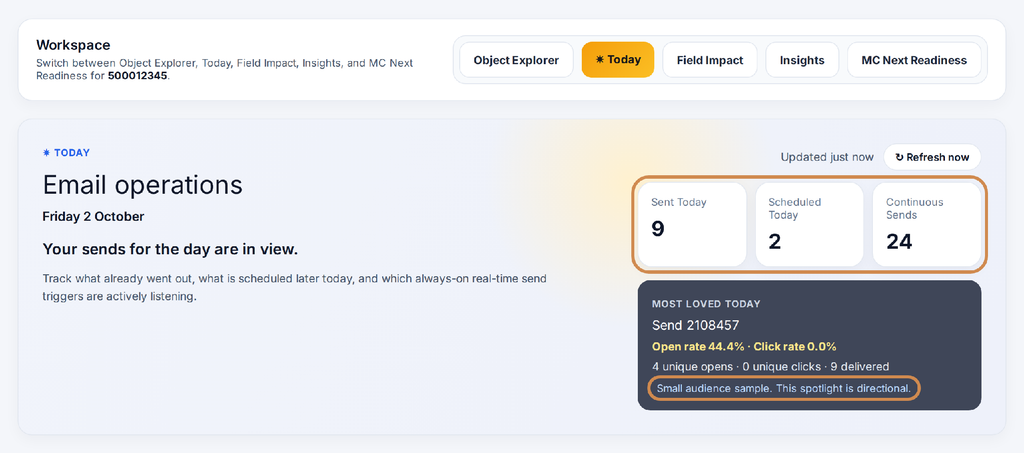
Figure 6: The Today view header, with the daily KPIs highlighted
On our demo account, the Today view showed 9 completed sends, 2 scheduled for later, and 24 always-on triggers. At first glance, everything looked under control. A closer inspection, however, revealed two issues worth investigating.
- Test sends in production: Three of the five visible sends went to a single recipient within a 16-minute window. That pattern often indicates someone is testing campaigns directly from the production business unit.
- Test journeys still published: Both A-B TEST and Test_Journey_Copy appeared among the 24 always-on triggers. A published journey remains active and listening for entry events. If its entry source is a live data extension, API event, or Salesforce object, real contacts can enter the journey and receive test content.
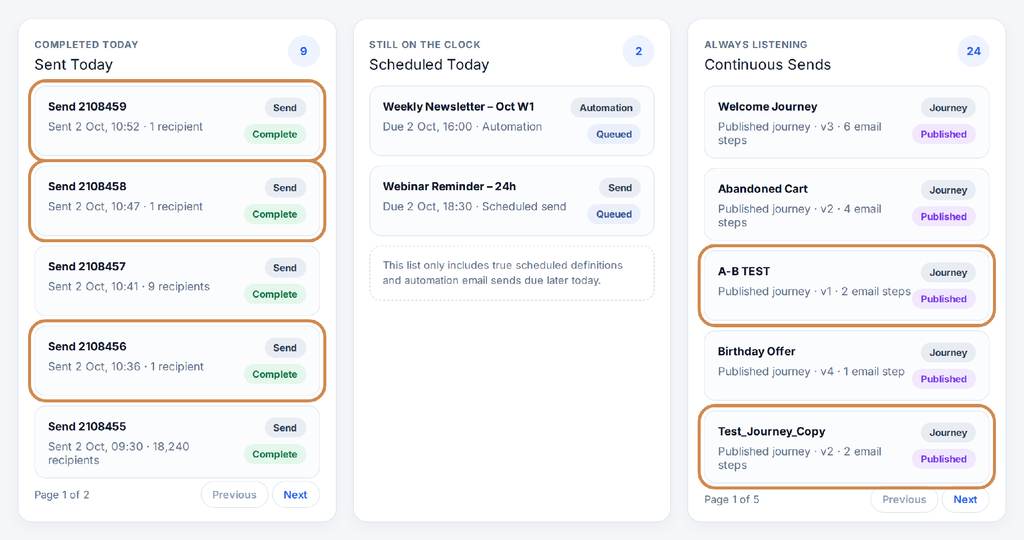
Figure 7: The three Today panels, with single-recipient sends and test journeys highlighted
6 ways to use Marketing Cloud Schema Explorer for audits and daily monitoring
Insights and Today work at different rhythms. Insights is for onboarding and periodic audits; Today is for daily operations. Here are six ways to use them.
1. Onboard new clients with a baseline audit
In week One of onboarding a client, run a Schema Explorer sync and you walk away with a quantified baseline for your discovery document, a list of broken queries to flag before anyone attributes them to you, and evidence to scope a cleanup phase into the statement of work.
2. Run a quarterly health check
Accounts accumulate assets. Campaigns end, people move on and data extensions pile up. Run a manual sync each quarter and compare:
| Check | What to compare quarter over quarter |
| Risk score | Is it trending down after cleanup? |
| Unused DEs | Is the team creating throwaway DEs faster than it retires them? |
| Broken queries | Should be near zero after the first cleanup; new ones signal a recent breaking change |
| Paused automations | Anything paused 365+ days should be deleted or documented |
For retainer clients, this becomes a recurring deliverable: a one-page quarterly health report with before-and-after numbers.
3. Support data retention reviews
A data extension untouched for 180+ days that still holds contact data is a retention risk. It may keep personal data longer than your privacy policy or consent terms allow. The 1,612 stale data extensions become a data-minimization worklist; cross-reference them with the ones holding personally identifiable information (PII), and you have the start of a retention review.
4. Replace the morning scramble
Make the Today workspace the first screen of your daily stand-up:
| Check | Look at | Red flag |
| Did this morning’s campaigns go out? | Completed Today | A planned send is missing or shows zero recipients |
| Is everything due later still queued? | Still on the Clock | The count doesn’t match the campaign calendar |
| Are the right journeys live? | Always Listening | A test, paused or retired journey is still published |
A snapshot at the end of each shift also makes a clean handover for teams working across time zones: what went out, what’s queued and what’s listening.
5. Catch test sends and test journeys early
Single-recipient sends add noise to send logs and are one wrong audience away from a real send. If you see them daily, set up a dedicated test business unit, or at least a naming rule that makes tests easy to filter. Review Always Listening regularly and stop any journey named test, copy or v1 that shouldn’t be live.
6. Read early performance with care
Treat Most Loved Today as a prompt to look closer, not a result to report.
It showed a 44.4% open rate, but from only 9 deliveries, and the tool rightly labels it a “small audience sample”. Small sends swing wildly, and since Apple Mail Privacy Protection, opens are inflated by automatic image loading.
Before you delete anything: what a metadata scan can’t see
“No detected usage” means Schema Explorer found no link from a data extension to a journey, automation, query, import, file transfer, filter or extract. It cannot see data extensions referenced only in:
- AMPscript Lookup() or LookupRows() calls in emails and CloudPages (AMPscript is Marketing Cloud’s scripting language for personalization)
- SSJS or WSProxy code
- External systems calling the API
- Sendable audiences in Email Studio sends
Treat the flagged list as candidates for review, not a delete list. Our approach is to export the flagged data extensions, check them against content and API usage, archive or export the data, then delete in batches.
A special thank-you to Alok Behera and the Salesforce Labs team for creating and making Schema Explorer freely available. Tools like this make day-to-day MCE work, and migration planning, noticeably easier for teams like ours. Salesforce Labs apps are free and community-supported, and are not official Salesforce products.
Wrapping up
Marketing Cloud Engagement accounts contain interconnected assets and dependencies that are not always fully documented, alongside a daily stream of sends that needs operational oversight. Schema Explorer’s Insights and Today workspaces provide a consolidated starting point for investigating both account health and daily email activity.
In our demo account, Insights surfaced 42 query activities referencing missing data extensions, while Today highlighted two published test journeys and provided a consolidated view of daily sends and active triggers. The account also offered a practical example of how a daily stand-up can be organized around one screen rather than several separate workspaces.
Need help auditing your Marketing Cloud Engagement account?
Book a Salesforce Marketing Cloud asset health audit, or talk to our managed services team about daily monitoring, journey governance, and send QA.